> ## Documentation Index
> Fetch the complete documentation index at: https://docs.ipmideck.com/llms.txt
> Use this file to discover all available pages before exploring further.
# Interactive Console
> Drive a running ipmideck server from your terminal: a pinned-header operator console with single-key actions for verbosity, sessions, servers, the dashboard URL, and the bind address.
When you start ipmideck in a terminal, it renders an interactive operator console: a
pinned header with the banner and a help bar over a live, scrolling log. Every action is a
single keypress, no menus, no mouse. The console runs in-process alongside the server, so
what you see is the live state of the box you are on.
The console only appears on a real **interactive terminal**, both stdin and stdout must be
TTYs. Under Docker, systemd, or when stdout is piped/redirected, ipmideck skips the console
entirely and just writes plain scrolling logs. See [Where the console shows up](#where-the-console-shows-up).
## What it looks like
The console is one full-screen view: a pinned header you can always see, over a live log
that scrolls underneath it.
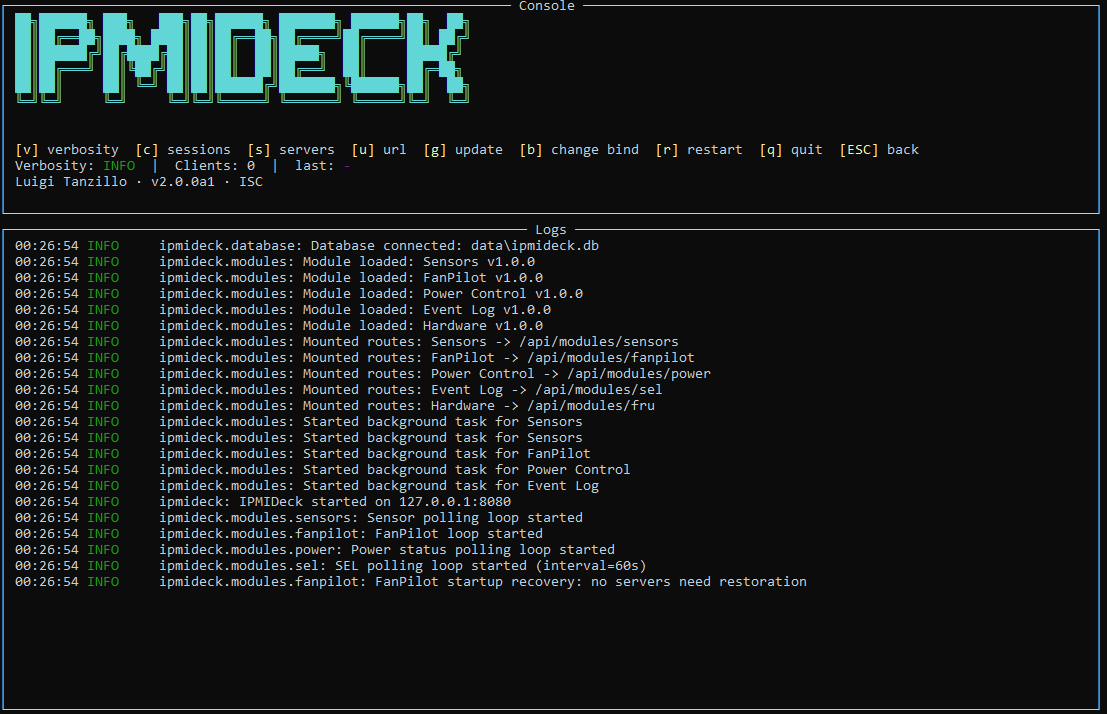 The header never scrolls. New log lines appear in the panel below it, and the newest line
is always kept on screen. You press a single key to act; everything happens in-process
against the server you just started.
## The header
The top of the screen is a fixed header that never scrolls. It stacks, top to bottom:
* The ipmideck banner.
* The **help bar**: every action key and what it does.
* The **status line**: the live state of the session.
* A compact credits line (author, version, license).
The body below the header is the scrolling log tail. The newest line is always kept on
screen, so a freshly surfaced URL or confirmation is never clipped off the bottom.
### Status line
The status line shows three live fields, separated by `|`:
* **Verbosity**: the current log level (`INFO`, `DEBUG`, or `WARNING`).
* **Clients**: the number of connected dashboard clients right now.
* **last**: the last action key you pressed, as immediate visual feedback.
## Action keys
Every action is one keypress. The help bar lists them all:
| Key | Action |
| ----- | --------------------------------------------------- |
| `v` | Cycle log **verbosity** |
| `c` | Open the connected-**sessions** sub-view |
| `s` | Open the configured-**servers** sub-view |
| `u` | Surface the dashboard **url** in the log |
| `g` | **Update** check (prints the local version) |
| `b` | Open the **change-bind** editor |
| `r` | **Restart** the server |
| `q` | **Quit**, or return to the log view from a sub-view |
| `ESC` | **Back**, return to the log view from a sub-view |
Arrow, function, and navigation keys are consumed and ignored, they never collide with an
action or count as a keypress.
### v: verbosity
`v` cycles the runtime log level through a fixed three-step loop:
```
INFO → DEBUG → WARNING → INFO
```
`INFO` is the default. `DEBUG` shows more; `WARNING` shows less. The change takes effect
immediately for the rest of the session and the status line updates to match.
The verbosity toggle changes the **running** level only. On the next boot, the level from
your config (or the `IPMIDECK_LOGGING_LEVEL` env var) wins again. See [Configuration](/en/configuration).
### c: sessions
`c` opens the **Connected sessions** sub-view, a read-only table of the dashboard clients
currently attached, with columns:
* **IP**
* **Connected since**
* **User-Agent**
Press `q` or `ESC` to return to the log view.
The header never scrolls. New log lines appear in the panel below it, and the newest line
is always kept on screen. You press a single key to act; everything happens in-process
against the server you just started.
## The header
The top of the screen is a fixed header that never scrolls. It stacks, top to bottom:
* The ipmideck banner.
* The **help bar**: every action key and what it does.
* The **status line**: the live state of the session.
* A compact credits line (author, version, license).
The body below the header is the scrolling log tail. The newest line is always kept on
screen, so a freshly surfaced URL or confirmation is never clipped off the bottom.
### Status line
The status line shows three live fields, separated by `|`:
* **Verbosity**: the current log level (`INFO`, `DEBUG`, or `WARNING`).
* **Clients**: the number of connected dashboard clients right now.
* **last**: the last action key you pressed, as immediate visual feedback.
## Action keys
Every action is one keypress. The help bar lists them all:
| Key | Action |
| ----- | --------------------------------------------------- |
| `v` | Cycle log **verbosity** |
| `c` | Open the connected-**sessions** sub-view |
| `s` | Open the configured-**servers** sub-view |
| `u` | Surface the dashboard **url** in the log |
| `g` | **Update** check (prints the local version) |
| `b` | Open the **change-bind** editor |
| `r` | **Restart** the server |
| `q` | **Quit**, or return to the log view from a sub-view |
| `ESC` | **Back**, return to the log view from a sub-view |
Arrow, function, and navigation keys are consumed and ignored, they never collide with an
action or count as a keypress.
### v: verbosity
`v` cycles the runtime log level through a fixed three-step loop:
```
INFO → DEBUG → WARNING → INFO
```
`INFO` is the default. `DEBUG` shows more; `WARNING` shows less. The change takes effect
immediately for the rest of the session and the status line updates to match.
The verbosity toggle changes the **running** level only. On the next boot, the level from
your config (or the `IPMIDECK_LOGGING_LEVEL` env var) wins again. See [Configuration](/en/configuration).
### c: sessions
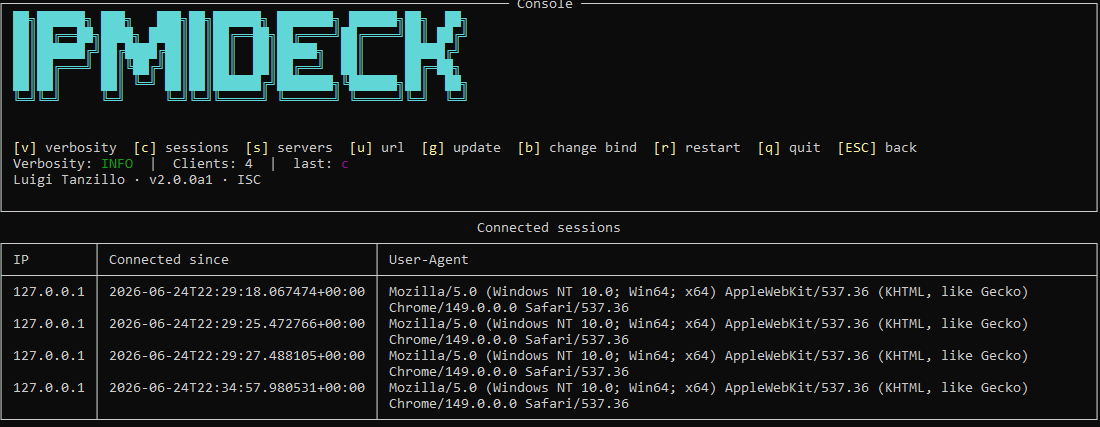
`c` opens the **Connected sessions** sub-view, a read-only table of the dashboard clients
currently attached, with columns:
* **IP**
* **Connected since**
* **User-Agent**
Press `q` or `ESC` to return to the log view.
 ### s: servers
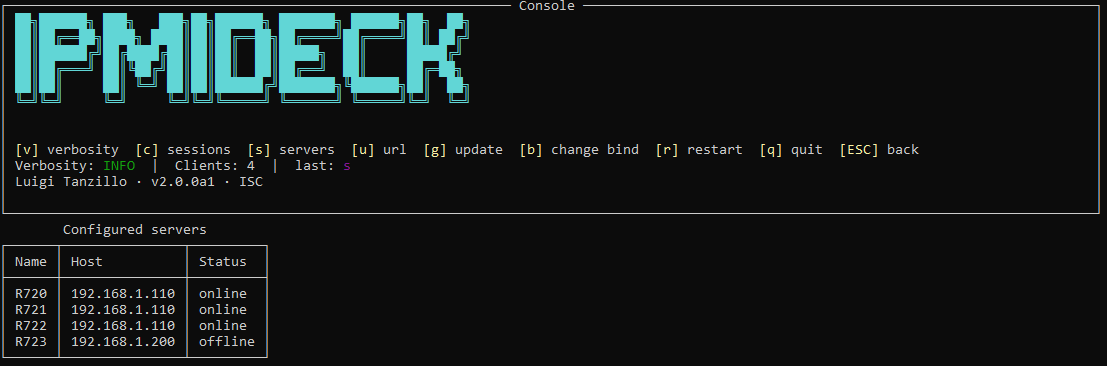
`s` opens the **Configured servers** sub-view, a read-only table of the BMCs ipmideck is
configured to talk to, with columns:
* **Name**
* **Host**
* **Status**
Press `q` or `ESC` to return to the log view.
### s: servers
`s` opens the **Configured servers** sub-view, a read-only table of the BMCs ipmideck is
configured to talk to, with columns:
* **Name**
* **Host**
* **Status**
Press `q` or `ESC` to return to the log view.
 ### u: url
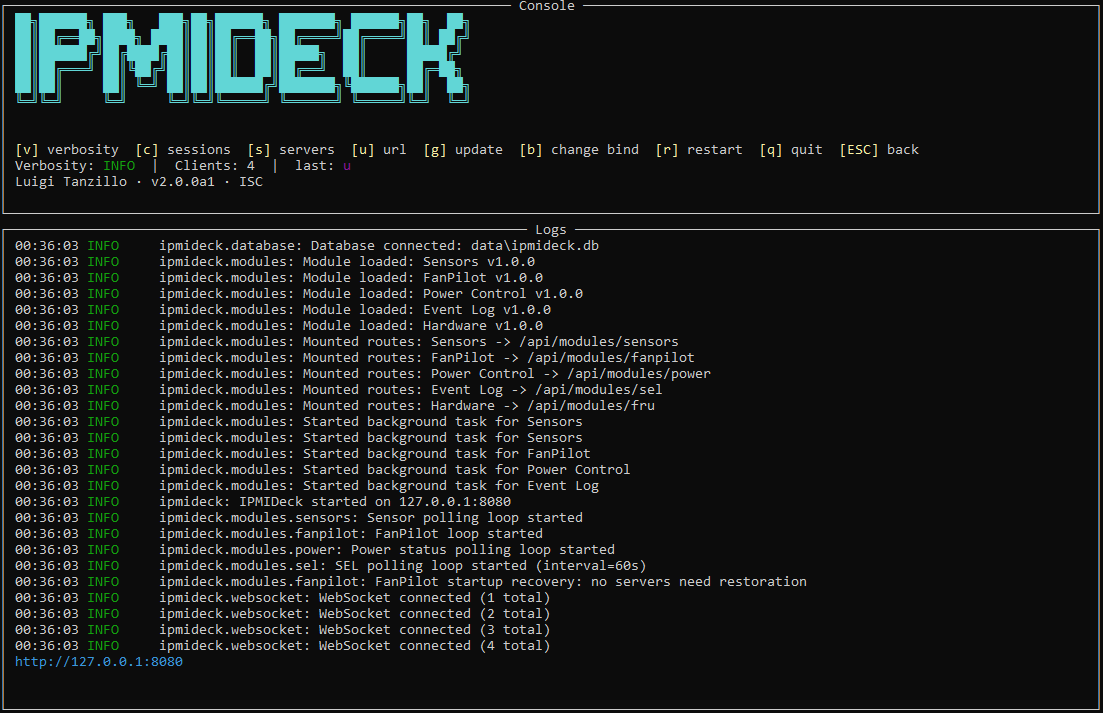
`u` surfaces the dashboard URL (`scheme://host:port`) in the log body. If the server is
bound to a wildcard address (`0.0.0.0`, `::`, or empty), the URL is rewritten to
`127.0.0.1` so it is actually openable in a browser, `http://0.0.0.0:3000` is a listen
address, not a navigable one.
### u: url
`u` surfaces the dashboard URL (`scheme://host:port`) in the log body. If the server is
bound to a wildcard address (`0.0.0.0`, `::`, or empty), the URL is rewritten to
`127.0.0.1` so it is actually openable in a browser, `http://0.0.0.0:3000` is a listen
address, not a navigable one.
 ### g: update
`g` prints the local version and a note that the online update check ships with the pip
release. It makes **no network call**, ipmideck stays offline.
### r: restart
`r` performs a clean in-process restart: ipmideck tears down the console, re-reads
`config.yaml`, and starts fresh. Use it after a [change-bind](#b-change-bind) edit to apply
the new address.
### q / ESC: quit and back
* From a sub-view (`sessions` or `servers`), `q` and `ESC` both return you to the log view.
* From the log view, `q` triggers a clean exit, the server shuts down gracefully.
## b: change-bind
`b` opens the change-bind editor, an inline `host:port` prompt that replaces the help bar
while you type. The header shows the current bind as a read-only `current: host:port` label
and an empty `new:` field, so the value you type appears immediately and is never confused
with the existing one.
### g: update
`g` prints the local version and a note that the online update check ships with the pip
release. It makes **no network call**, ipmideck stays offline.
### r: restart
`r` performs a clean in-process restart: ipmideck tears down the console, re-reads
`config.yaml`, and starts fresh. Use it after a [change-bind](#b-change-bind) edit to apply
the new address.
### q / ESC: quit and back
* From a sub-view (`sessions` or `servers`), `q` and `ESC` both return you to the log view.
* From the log view, `q` triggers a clean exit, the server shuts down gracefully.
## b: change-bind
`b` opens the change-bind editor, an inline `host:port` prompt that replaces the help bar
while you type. The header shows the current bind as a read-only `current: host:port` label
and an empty `new:` field, so the value you type appears immediately and is never confused
with the existing one.
 Keys inside the editor:
* **Enter**: apply the typed `host:port`.
* **ESC**: cancel without changing anything.
* **Backspace**: delete the last character.
* Any printable character, append to the buffer.
The input must be `host:port` with a non-empty host and a port that is an integer in the
range **1–65535**. On a valid entry, ipmideck confirms the new bind and reminds you that a restart is
required (press `r`). On an invalid entry, it reports `Invalid host/port` and
nothing changes.
A change-bind edit is **not** live, it is written to config and only takes effect after a
restart. Press `r` to apply it. And remember the precedence: an `IPMIDECK_SERVER_HOST` /
`IPMIDECK_SERVER_PORT` env var or an explicit `--host` / `--port` flag on the next boot
overrides whatever the console persisted. See [Configuration](/en/configuration).
## Where the console shows up
The interactive console is gated on a real TTY: ipmideck renders it only when **both**
stdin and stdout are interactive terminals. When they are not, it degrades to a banner plus
plain scrolling logs and installs no key listener, so nothing busy-spins on a non-TTY.
This means the console appears when you run ipmideck directly in a terminal:
```powershell PowerShell theme={null}
ipmideck
```
```cmd cmd theme={null}
ipmideck
```
```bash bash theme={null}
ipmideck
```
It does **not** appear when:
* Running under **Docker**: the container launches uvicorn directly and never reaches the
console path; you get plain container logs (`docker logs`).
* Running under **systemd** or any service manager where stdout is not a terminal.
* **Piping or redirecting** stdout (e.g. `ipmideck > server.log`): stdout is no longer a TTY.
In every non-TTY case the server still runs normally and binds to the same default
`0.0.0.0:3000`; you just get plain logs instead of the live console.
`ipmilink` is a backward-compatible alias for `ipmideck`, both launch the same console.
## Next steps
* [Running ipmideck](/en/running): start, serve, and the bind-precedence rules.
* [The CLI](/en/cli): every subcommand and flag in detail.
* [Configuration](/en/configuration): set the bind address, verbosity, and polling intervals.
* [Installation](/en/installation): install with Docker or pip.
Keys inside the editor:
* **Enter**: apply the typed `host:port`.
* **ESC**: cancel without changing anything.
* **Backspace**: delete the last character.
* Any printable character, append to the buffer.
The input must be `host:port` with a non-empty host and a port that is an integer in the
range **1–65535**. On a valid entry, ipmideck confirms the new bind and reminds you that a restart is
required (press `r`). On an invalid entry, it reports `Invalid host/port` and
nothing changes.
A change-bind edit is **not** live, it is written to config and only takes effect after a
restart. Press `r` to apply it. And remember the precedence: an `IPMIDECK_SERVER_HOST` /
`IPMIDECK_SERVER_PORT` env var or an explicit `--host` / `--port` flag on the next boot
overrides whatever the console persisted. See [Configuration](/en/configuration).
## Where the console shows up
The interactive console is gated on a real TTY: ipmideck renders it only when **both**
stdin and stdout are interactive terminals. When they are not, it degrades to a banner plus
plain scrolling logs and installs no key listener, so nothing busy-spins on a non-TTY.
This means the console appears when you run ipmideck directly in a terminal:
```powershell PowerShell theme={null}
ipmideck
```
```cmd cmd theme={null}
ipmideck
```
```bash bash theme={null}
ipmideck
```
It does **not** appear when:
* Running under **Docker**: the container launches uvicorn directly and never reaches the
console path; you get plain container logs (`docker logs`).
* Running under **systemd** or any service manager where stdout is not a terminal.
* **Piping or redirecting** stdout (e.g. `ipmideck > server.log`): stdout is no longer a TTY.
In every non-TTY case the server still runs normally and binds to the same default
`0.0.0.0:3000`; you just get plain logs instead of the live console.
`ipmilink` is a backward-compatible alias for `ipmideck`, both launch the same console.
## Next steps
* [Running ipmideck](/en/running): start, serve, and the bind-precedence rules.
* [The CLI](/en/cli): every subcommand and flag in detail.
* [Configuration](/en/configuration): set the bind address, verbosity, and polling intervals.
* [Installation](/en/installation): install with Docker or pip.