> ## Documentation Index
> Fetch the complete documentation index at: https://docs.ipmideck.com/llms.txt
> Use this file to discover all available pages before exploring further.
# HPE iLO
> Enable IPMI/DCMI-over-LAN on HPE iLO 4 / iLO 5 so ipmideck can connect to your ProLiant server.
**Applies to:** HPE iLO 4 and iLO 5 (ProLiant servers).
HPE iLO is an **Experimental** vendor for ipmideck, these steps are from official HPE
documentation and a real iLO 4. On **iLO 4** IPMI-over-LAN is typically **enabled by
default**; on **iLO 5** it is **disabled by default** for security and must be turned on
(steps below).
## iLO 5: enable IPMI/DCMI over LAN
In a browser, navigate to the iLO IP address and log in with iLO administrator
credentials.
In the left navigation pane click **Security**, open the **Access Settings** tab, then
click the **pencil / edit** icon for the **Network** section.
Tick **IPMI/DCMI over LAN** and click **Apply**. IPMI-over-LAN uses the default port
**623**.
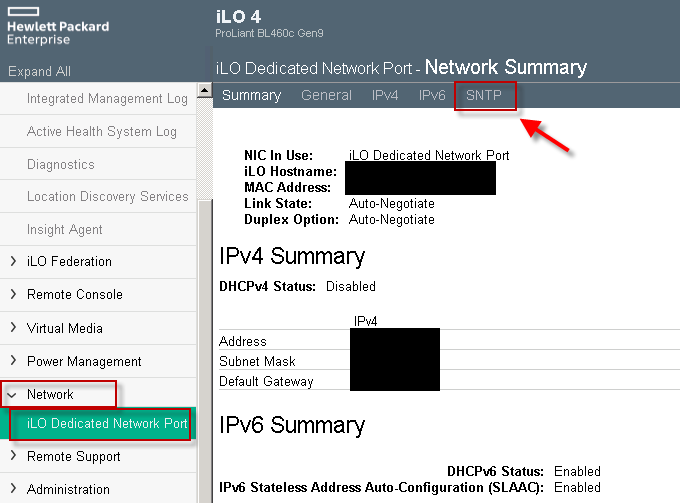
## iLO 4: confirm the network address
On iLO 4, IPMI-over-LAN is generally enabled already; you mainly need the iLO's IP address.
Open **Network → iLO Dedicated Network Port** and read the **Network Summary**.
 ## Verify
From the host that will run ipmideck:
```bash theme={null}
ipmitool -I lanplus -H -U -P chassis status
```
**Flag for review:** the path differs between iLO 4 (a **Network** tab; IPMI usually
enabled) and iLO 5 (**Security → Access Settings**; IPMI disabled by default). Verify
against your specific iLO version before relying on these steps.
## Source
[CITED: support.hpe.com, HPE iLO 5 IPMI User Guide](https://support.hpe.com/hpesc/public/docDisplay?docId=a00018321en_us) ·
[Guidelines for using iLO with IPMI or DCMI over LAN](https://support.hpe.com/hpesc/public/docDisplay?docId=a00026171en_us)
## Verify
From the host that will run ipmideck:
```bash theme={null}
ipmitool -I lanplus -H -U -P chassis status
```
**Flag for review:** the path differs between iLO 4 (a **Network** tab; IPMI usually
enabled) and iLO 5 (**Security → Access Settings**; IPMI disabled by default). Verify
against your specific iLO version before relying on these steps.
## Source
[CITED: support.hpe.com, HPE iLO 5 IPMI User Guide](https://support.hpe.com/hpesc/public/docDisplay?docId=a00018321en_us) ·
[Guidelines for using iLO with IPMI or DCMI over LAN](https://support.hpe.com/hpesc/public/docDisplay?docId=a00026171en_us)