> ## Documentation Index
> Fetch the complete documentation index at: https://docs.ipmideck.com/llms.txt
> Use this file to discover all available pages before exploring further.
# IBM IMM
> Enable IPMI-over-LAN on the IBM Integrated Management Module II (IMM2) for System x servers. Low-confidence, verify on your hardware before use.
**Low-confidence guide, verify on your hardware before relying on these steps.**
IBM IMM2 hardware is legacy (IBM sold the System x line to Lenovo in 2014) and online
documentation is sparse. The exact web-interface path depends on the IMM2 firmware
version. This is a **high review priority**, confirm every path against your own server
and report corrections. Owner hardware validation is pending.
**Applies to:** IBM System x servers with IMM2 (Integrated Management Module II), for
example the IBM x3650 M4 and x3550 M4.
IBM IMM is an **Experimental** vendor for ipmideck.
## Steps
In a browser, navigate to the IMM2 IP address and log in. The default credentials are
**USERID** / **PASSW0RD** (note the **zero** in "PASSW0RD"). Change them immediately
if they are still in use.
From the top menu, go to **IMM Management → Network Protocol Properties**, the page
with tabs for Ethernet, SNMP, DNS, …, **IPMI**.
Open the **IPMI** tab and tick **Allow IPMI access**, then click **Apply**.
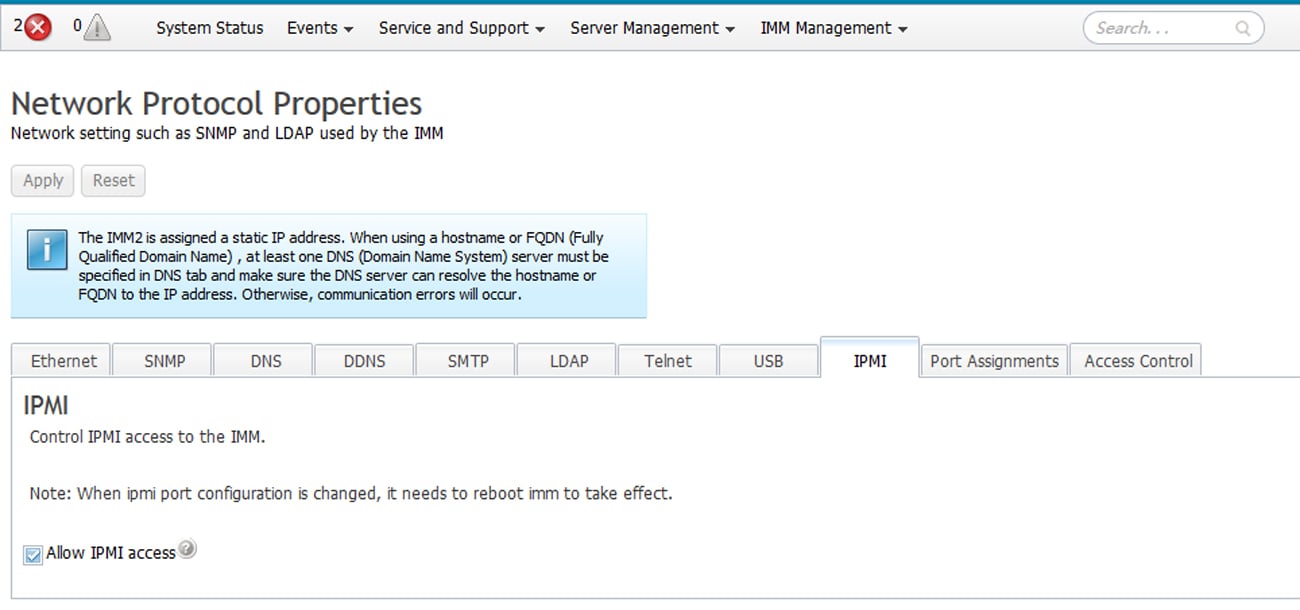 Changing the IPMI port configuration **requires an IMM reboot** to take effect, the
IMM shows this reminder on the IPMI tab.
IBM's documentation notes: *"If no IPMI User IDs have been configured by the CMM, the
network port associated with the IPMI protocol will be closed."* Make sure at least one
IPMI user ID is configured, or the LAN port stays closed.
From the host that will run ipmideck:
```bash theme={null}
ipmitool -I lanplus -H -U USERID -P chassis status
```
**Flag for review:** the IMM2 web-UI path varies by firmware version, and IBM's BMC
documentation is sparse online. The full reference is the
[IMM2 Configuration User's Guide (PDF)](https://public.dhe.ibm.com/systems/support/system_x_pdf/imm2_configurations_usersguide.pdf).
Validate every step against real hardware before relying on this guide.
## Source
[CITED: pubs.lenovo.com/imm2, Managing the IMM2 with IPMI](https://pubs.lenovo.com/imm2/dw1lm_t_managingtheimmwithipmi.html) ·
[IMM2 Configuration User's Guide (IBM)](https://public.dhe.ibm.com/systems/support/system_x_pdf/imm2_configurations_usersguide.pdf)
Changing the IPMI port configuration **requires an IMM reboot** to take effect, the
IMM shows this reminder on the IPMI tab.
IBM's documentation notes: *"If no IPMI User IDs have been configured by the CMM, the
network port associated with the IPMI protocol will be closed."* Make sure at least one
IPMI user ID is configured, or the LAN port stays closed.
From the host that will run ipmideck:
```bash theme={null}
ipmitool -I lanplus -H -U USERID -P chassis status
```
**Flag for review:** the IMM2 web-UI path varies by firmware version, and IBM's BMC
documentation is sparse online. The full reference is the
[IMM2 Configuration User's Guide (PDF)](https://public.dhe.ibm.com/systems/support/system_x_pdf/imm2_configurations_usersguide.pdf).
Validate every step against real hardware before relying on this guide.
## Source
[CITED: pubs.lenovo.com/imm2, Managing the IMM2 with IPMI](https://pubs.lenovo.com/imm2/dw1lm_t_managingtheimmwithipmi.html) ·
[IMM2 Configuration User's Guide (IBM)](https://public.dhe.ibm.com/systems/support/system_x_pdf/imm2_configurations_usersguide.pdf)