> ## Documentation Index
> Fetch the complete documentation index at: https://docs.ipmideck.com/llms.txt
> Use this file to discover all available pages before exploring further.
# Lenovo XCC
> Enable IPMI-over-LAN on the Lenovo XClarity Controller (XCC / XCC2) so ipmideck can connect to your ThinkSystem server.
**Applies to:** Lenovo ThinkSystem servers with XClarity Controller (XCC) and XCC2.
Lenovo XCC is an **Experimental** vendor for ipmideck, these steps are from official Lenovo
documentation and a real XCC (ThinkSystem SR630 V2). IPMI-over-LAN is **disabled by
default** on XCC for security, and Lenovo recommends disabling it again when it is not in
use.
## Steps
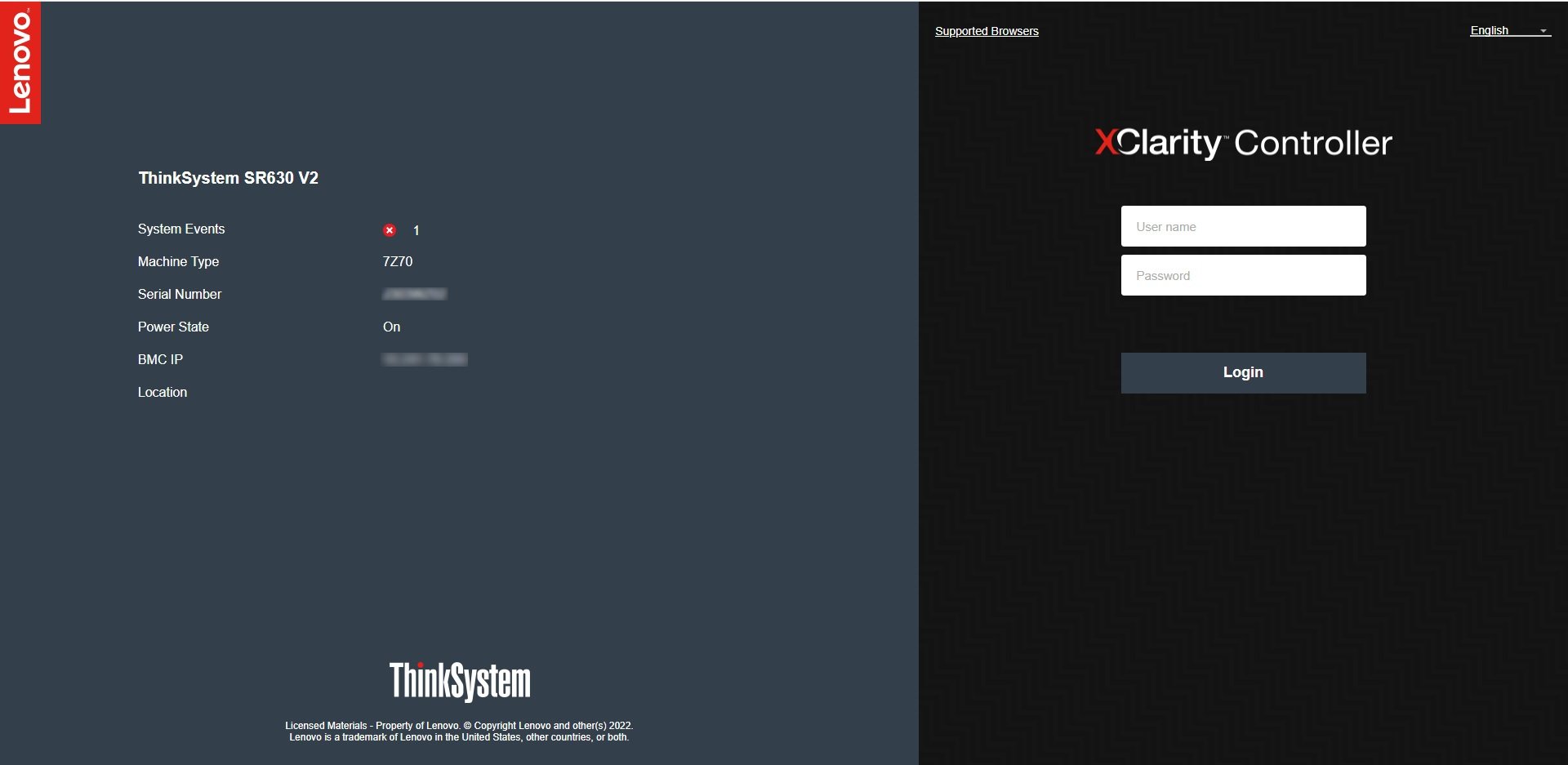
In a browser, navigate to the XCC IP address and log in. The default credentials are
**USERID** / **PASSW0RD** (note the **zero** in "PASSW0RD"). Change them immediately
if they are still in use.
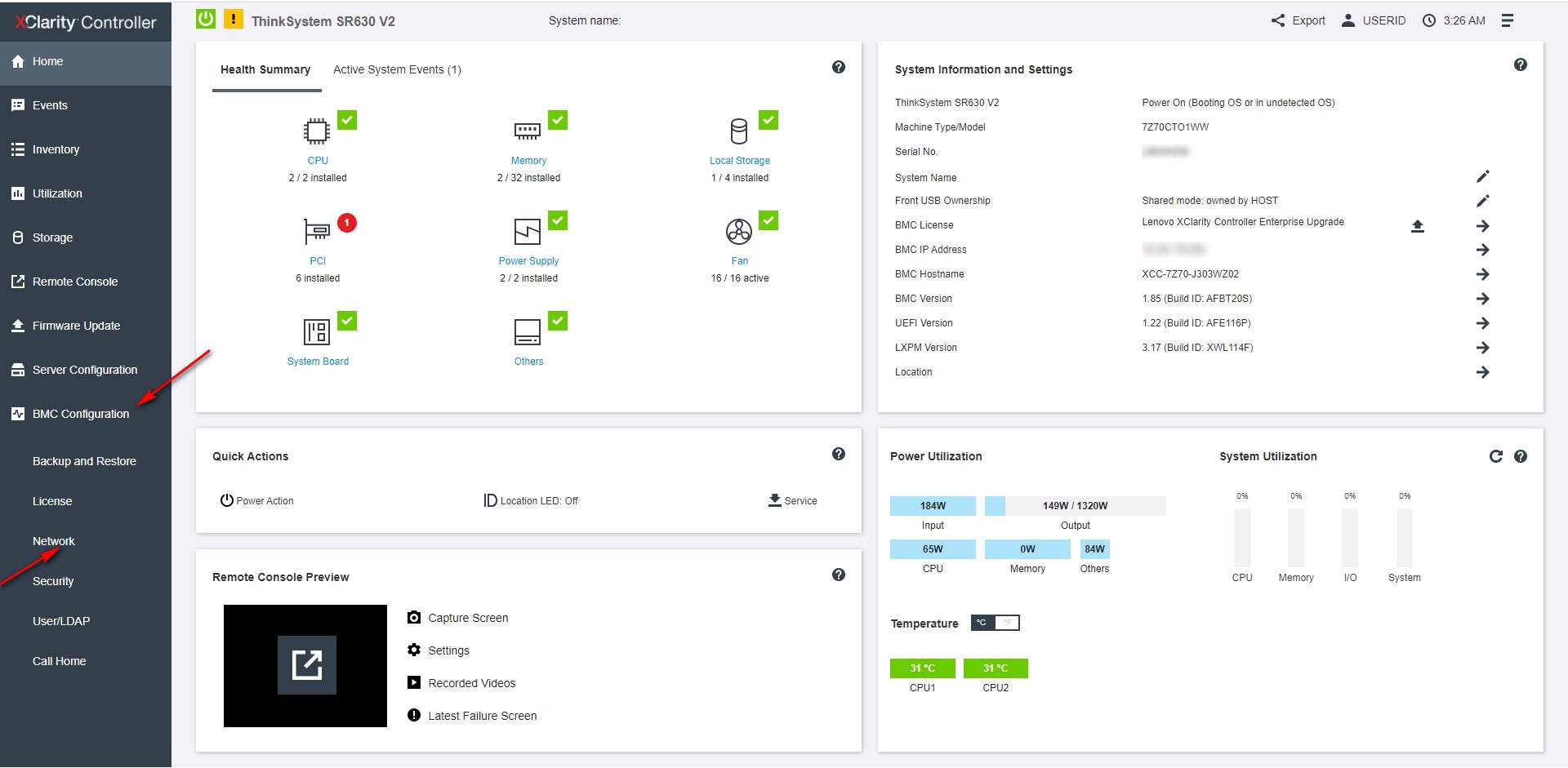
 From the XCC dashboard, open **BMC Configuration → Network** in the left navigation.
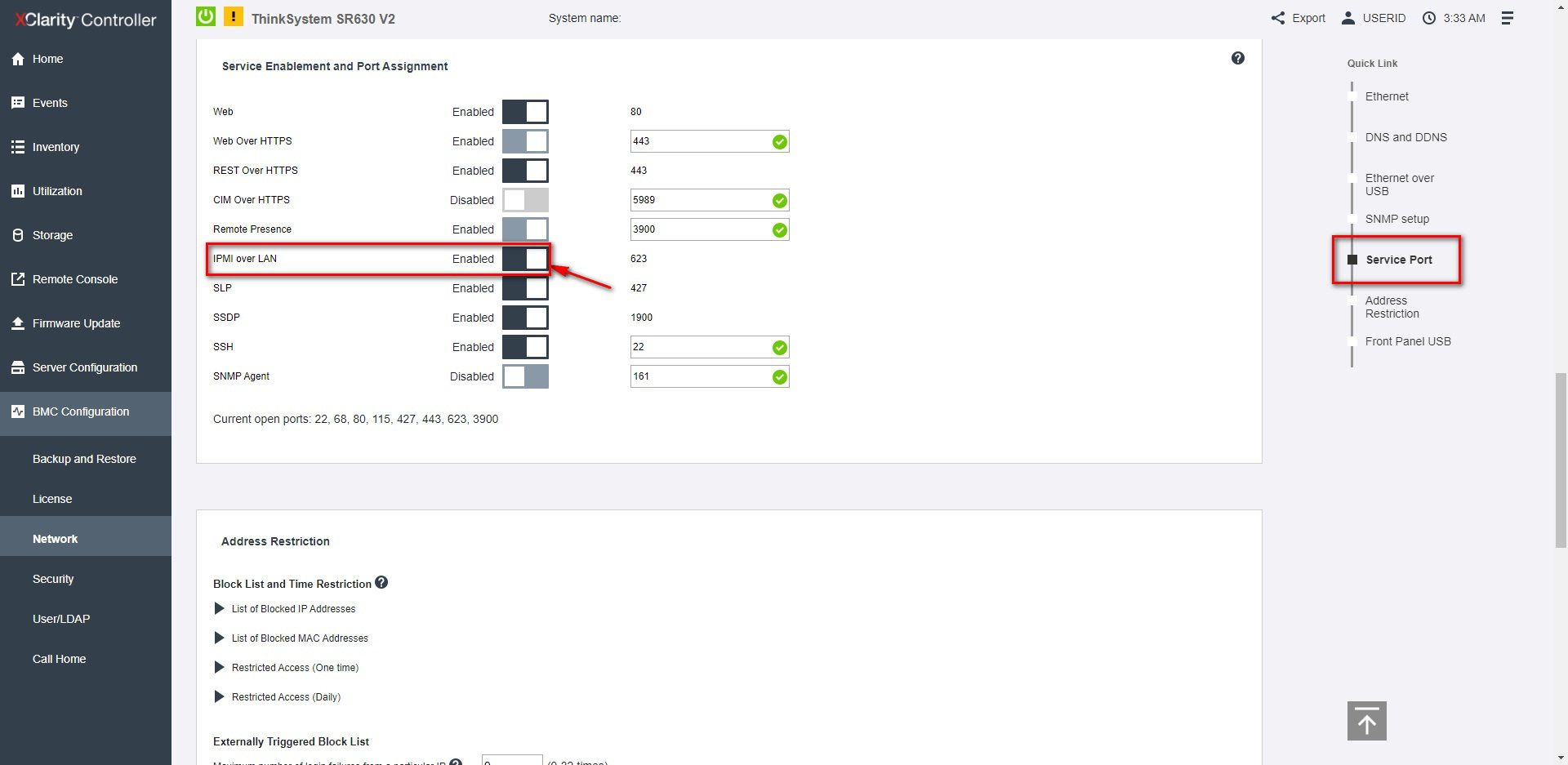
 Under **Service Enablement and Port Assignment**, set **IPMI over LAN** to **Enabled**
(it uses port **623**).
Under **Service Enablement and Port Assignment**, set **IPMI over LAN** to **Enabled**
(it uses port **623**).
 From the host that will run ipmideck:
```bash theme={null}
ipmitool -I lanplus -H -U USERID -P chassis status
```
**Flag for review:** XCC2 (the newer generation) uses the same path but with a redesigned
web interface. Verify the navigation against your actual hardware.
## Source
[CITED: pubs.lenovo.com/xcc, Enabling or Disabling IPMI Network Access (XCC)](https://pubs.lenovo.com/xcc/NN1ia_c_configuringIPMI) ·
[Lenovo Support HT514330, IPMI over LAN (XCC)](https://support.lenovo.com/us/en/solutions/ht514330-ipmi-over-lan-xcc)
From the host that will run ipmideck:
```bash theme={null}
ipmitool -I lanplus -H -U USERID -P chassis status
```
**Flag for review:** XCC2 (the newer generation) uses the same path but with a redesigned
web interface. Verify the navigation against your actual hardware.
## Source
[CITED: pubs.lenovo.com/xcc, Enabling or Disabling IPMI Network Access (XCC)](https://pubs.lenovo.com/xcc/NN1ia_c_configuringIPMI) ·
[Lenovo Support HT514330, IPMI over LAN (XCC)](https://support.lenovo.com/us/en/solutions/ht514330-ipmi-over-lan-xcc)