> ## Documentation Index
> Fetch the complete documentation index at: https://docs.ipmideck.com/llms.txt
> Use this file to discover all available pages before exploring further.
# IBM IMM
> Abilita IPMI-over-LAN sull'IBM Integrated Management Module II (IMM2) per server System x. Bassa affidabilità, verifica sul tuo hardware prima dell'uso.
**Guida a bassa affidabilità, verifica sul tuo hardware prima di affidarti a questi passaggi.**
L'hardware IBM IMM2 è legacy (IBM ha venduto la linea System x a Lenovo nel 2014) e la documentazione
online è scarsa. Il percorso esatto dell'interfaccia web dipende dalla versione del firmware
IMM2. Questa è una **priorità di revisione alta**, conferma ogni percorso sul tuo
server e segnala le correzioni. La validazione su hardware del proprietario è in attesa.
**Si applica a:** server IBM System x con IMM2 (Integrated Management Module II), per
esempio l'IBM x3650 M4 e x3550 M4.
IBM IMM è un produttore **Sperimentale** per ipmideck.
## Passaggi
In un browser, vai all'indirizzo IP di IMM2 e accedi. Le credenziali predefinite sono
**USERID** / **PASSW0RD** (nota lo **zero** in "PASSW0RD"). Cambiale immediatamente
se sono ancora in uso.
Dal menu in alto, vai su **IMM Management → Network Protocol Properties**, la pagina
con le schede per Ethernet, SNMP, DNS, …, **IPMI**.
Apri la scheda **IPMI** e spunta **Allow IPMI access**, poi clicca **Apply**.
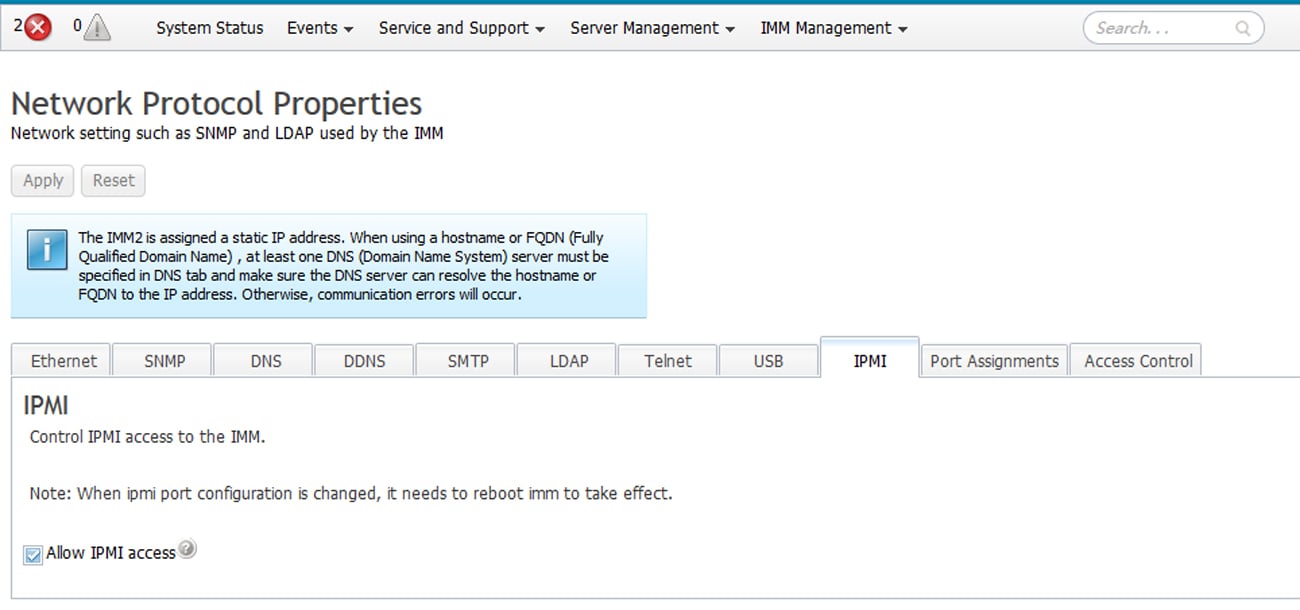 Cambiare la configurazione della porta IPMI **richiede un riavvio dell'IMM** per avere effetto, l'IMM
mostra questo promemoria sulla scheda IPMI.
La documentazione IBM nota: *"If no IPMI User IDs have been configured by the CMM, the
network port associated with the IPMI protocol will be closed."* Assicurati che almeno un
ID utente IPMI sia configurato, altrimenti la porta LAN resta chiusa.
Dall'host che eseguirà ipmideck:
```bash theme={null}
ipmitool -I lanplus -H -U USERID -P chassis status
```
**Da rivedere:** il percorso della web-UI di IMM2 varia per versione del firmware, e la documentazione
dei BMC IBM è scarsa online. Il riferimento completo è la
[IMM2 Configuration User's Guide (PDF)](https://public.dhe.ibm.com/systems/support/system_x_pdf/imm2_configurations_usersguide.pdf).
Valida ogni passaggio su hardware reale prima di affidarti a questa guida.
## Fonte
[CITED: pubs.lenovo.com/imm2, Managing the IMM2 with IPMI](https://pubs.lenovo.com/imm2/dw1lm_t_managingtheimmwithipmi.html) ·
[IMM2 Configuration User's Guide (IBM)](https://public.dhe.ibm.com/systems/support/system_x_pdf/imm2_configurations_usersguide.pdf)
Cambiare la configurazione della porta IPMI **richiede un riavvio dell'IMM** per avere effetto, l'IMM
mostra questo promemoria sulla scheda IPMI.
La documentazione IBM nota: *"If no IPMI User IDs have been configured by the CMM, the
network port associated with the IPMI protocol will be closed."* Assicurati che almeno un
ID utente IPMI sia configurato, altrimenti la porta LAN resta chiusa.
Dall'host che eseguirà ipmideck:
```bash theme={null}
ipmitool -I lanplus -H -U USERID -P chassis status
```
**Da rivedere:** il percorso della web-UI di IMM2 varia per versione del firmware, e la documentazione
dei BMC IBM è scarsa online. Il riferimento completo è la
[IMM2 Configuration User's Guide (PDF)](https://public.dhe.ibm.com/systems/support/system_x_pdf/imm2_configurations_usersguide.pdf).
Valida ogni passaggio su hardware reale prima di affidarti a questa guida.
## Fonte
[CITED: pubs.lenovo.com/imm2, Managing the IMM2 with IPMI](https://pubs.lenovo.com/imm2/dw1lm_t_managingtheimmwithipmi.html) ·
[IMM2 Configuration User's Guide (IBM)](https://public.dhe.ibm.com/systems/support/system_x_pdf/imm2_configurations_usersguide.pdf)