> ## Documentation Index
> Fetch the complete documentation index at: https://docs.ipmideck.com/llms.txt
> Use this file to discover all available pages before exploring further.
# Dell iDRAC
> Schakel IPMI-over-LAN in op Dell iDRAC (iDRAC6 / iDRAC7 / iDRAC8 / iDRAC9) zodat ipmideck verbinding kan maken met je PowerEdge-server.
**Van toepassing op:** Dell iDRAC6, iDRAC7, iDRAC8, iDRAC9 (PowerEdge-servers). De screenshots
hieronder zijn van iDRAC6; iDRAC7 en iDRAC8 zijn vrijwel identiek, en iDRAC9 reorganiseert
dezelfde instellingen onder *iDRAC Settings → Connectivity → Network* (zie de opmerking aan het eind).
Dell iDRAC is **Ondersteund / getest** met ipmideck. Deze stappen komen uit officiële Dell-
documentatie en een echte iDRAC6, bevestig dat het navigatiepad overeenkomt met je iDRAC-firmware
voordat je erop vertrouwt.
## Stappen
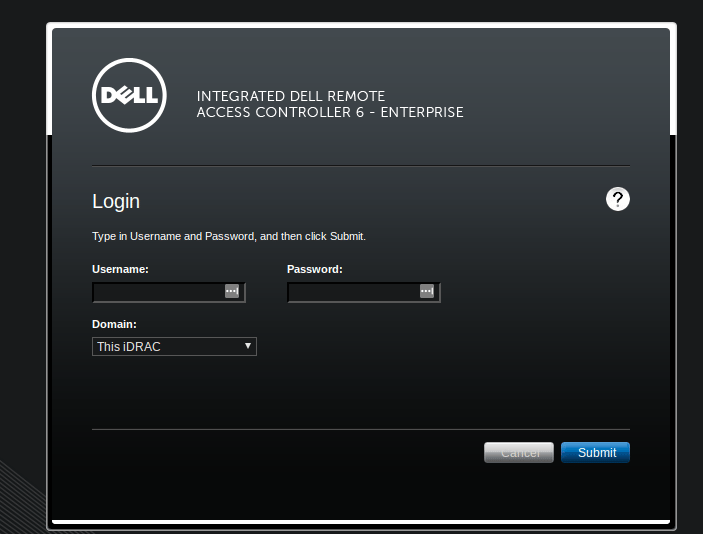
Navigeer in een browser naar het iDRAC-IP-adres (fabrieksstandaard `192.168.0.120`) en
log in. De standaard PowerEdge-inloggegevens zijn **root** / **calvin**, wijzig deze
onmiddellijk als ze nog in gebruik zijn.
 Kies in het linkerpaneel **iDRAC Settings**, open dan het tabblad **Network/Security** en
het subtabblad **Network**. Deze pagina bevat de IPv4-instellingen en, verder naar onder, de
**IPMI Settings**.
Op **iDRAC9** is het equivalente pad **iDRAC Settings → Connectivity → Network**.
Scroll naar de sectie **IPMI Settings** en vink **Enable IPMI Over LAN** aan. Stel de
**Channel Privilege Level Limit** in op **Administrator** (of minstens Operator) zodat
ipmideck sensoren kan uitlezen en voeding kan bedienen.
Kies in het linkerpaneel **iDRAC Settings**, open dan het tabblad **Network/Security** en
het subtabblad **Network**. Deze pagina bevat de IPv4-instellingen en, verder naar onder, de
**IPMI Settings**.
Op **iDRAC9** is het equivalente pad **iDRAC Settings → Connectivity → Network**.
Scroll naar de sectie **IPMI Settings** en vink **Enable IPMI Over LAN** aan. Stel de
**Channel Privilege Level Limit** in op **Administrator** (of minstens Operator) zodat
ipmideck sensoren kan uitlezen en voeding kan bedienen.
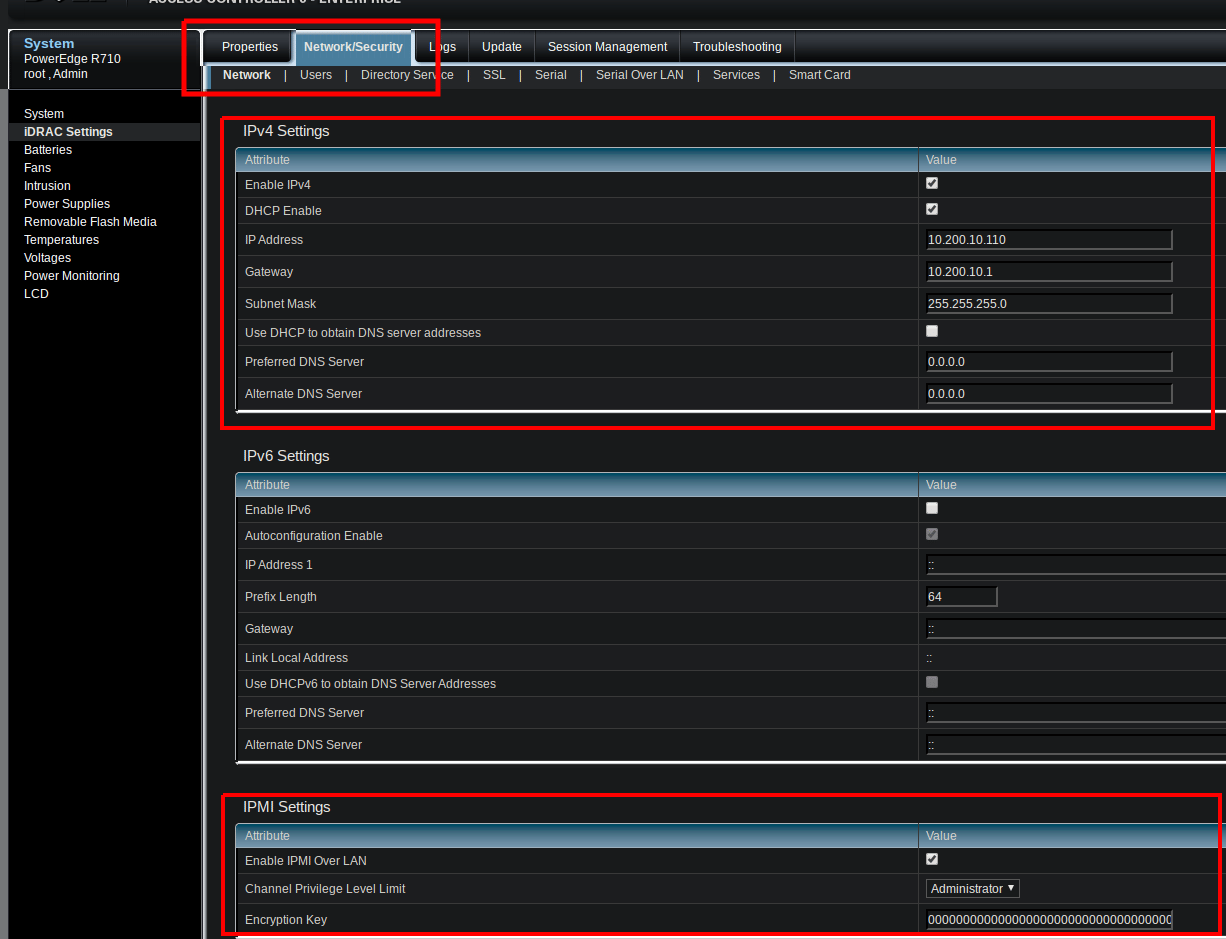 De **Encryption Key** kan op alle nullen blijven staan (de standaard) voor een standaard `lanplus`-
sessie. Stel alleen een hex-sleutel van 40 tekens in als je beveiligingsbeleid dit vereist.
Klik op **Apply** om de wijziging op te slaan.
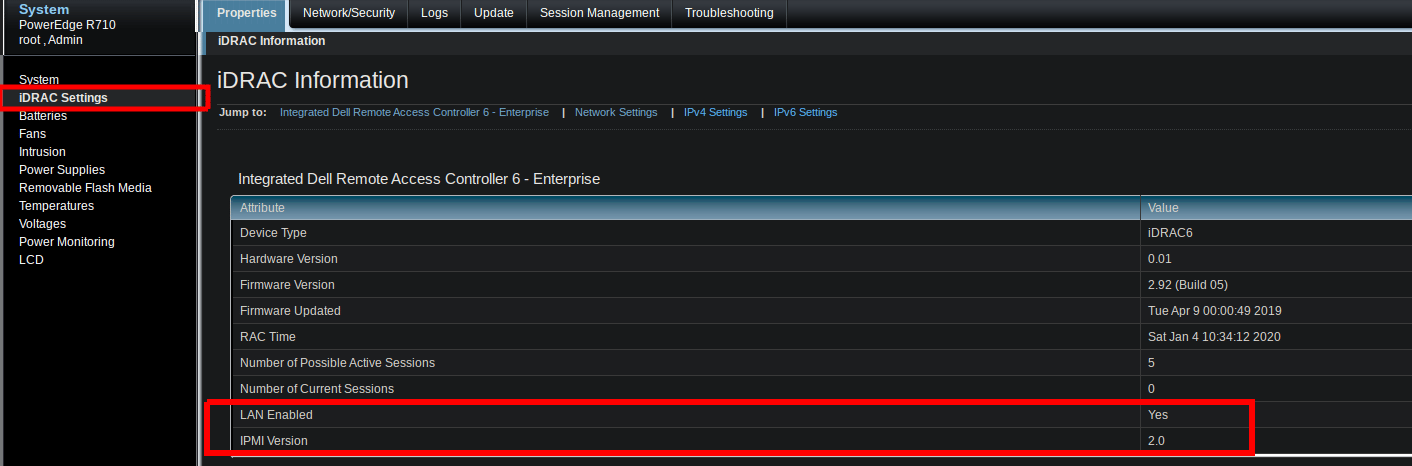
Terug op **Properties → iDRAC Settings → iDRAC Information**, bevestig **LAN Enabled: Yes**
en **IPMI Version: 2.0**.
De **Encryption Key** kan op alle nullen blijven staan (de standaard) voor een standaard `lanplus`-
sessie. Stel alleen een hex-sleutel van 40 tekens in als je beveiligingsbeleid dit vereist.
Klik op **Apply** om de wijziging op te slaan.
Terug op **Properties → iDRAC Settings → iDRAC Information**, bevestig **LAN Enabled: Yes**
en **IPMI Version: 2.0**.
 Bevestig daarna, vanaf de host die ipmideck gaat draaien, dat het LAN-kanaal reageert:
```bash theme={null}
ipmitool -I lanplus -H -U root -P calvin chassis status
```
**Pad verschilt per generatie:** iDRAC6 / iDRAC7 / iDRAC8 gebruiken *Network/Security → Network →
IPMI Settings* (hierboven getoond), terwijl iDRAC9 *iDRAC Settings → Connectivity → Network* gebruikt.
Verifieer het exacte pad tegen je hardware.
## Bron
[CITED: dell.com/support/manuals, iDRAC9 User Guide, section "Configuring IPMI over LAN using web interface"](https://www.dell.com/support/manuals/en-us/idrac9-lifecycle-controller-v3.1-series/idrac_3.15.15.15_ug/configuring-ipmi-over-lan-using-web-interface)
Bevestig daarna, vanaf de host die ipmideck gaat draaien, dat het LAN-kanaal reageert:
```bash theme={null}
ipmitool -I lanplus -H -U root -P calvin chassis status
```
**Pad verschilt per generatie:** iDRAC6 / iDRAC7 / iDRAC8 gebruiken *Network/Security → Network →
IPMI Settings* (hierboven getoond), terwijl iDRAC9 *iDRAC Settings → Connectivity → Network* gebruikt.
Verifieer het exacte pad tegen je hardware.
## Bron
[CITED: dell.com/support/manuals, iDRAC9 User Guide, section "Configuring IPMI over LAN using web interface"](https://www.dell.com/support/manuals/en-us/idrac9-lifecycle-controller-v3.1-series/idrac_3.15.15.15_ug/configuring-ipmi-over-lan-using-web-interface)