> ## Documentation Index
> Fetch the complete documentation index at: https://docs.ipmideck.com/llms.txt
> Use this file to discover all available pages before exploring further.
# IBM IMM
> Schakel IPMI-over-LAN in op de IBM Integrated Management Module II (IMM2) voor System x-servers. Lage zekerheid, verifieer op je hardware voor gebruik.
**Gids met lage zekerheid, verifieer op je hardware voordat je op deze stappen vertrouwt.**
IBM IMM2-hardware is legacy (IBM verkocht de System x-lijn in 2014 aan Lenovo) en online
documentatie is schaars. Het exacte webinterfacepad hangt af van de IMM2-firmware-
versie. Dit is een **hoge beoordelingsprioriteit**, bevestig elk pad tegen je eigen server
en meld correcties. Hardwarevalidatie door de eigenaar is in afwachting.
**Van toepassing op:** IBM System x-servers met IMM2 (Integrated Management Module II), bijvoorbeeld
de IBM x3650 M4 en x3550 M4.
IBM IMM is een **Experimentele** leverancier voor ipmideck.
## Stappen
Navigeer in een browser naar het IMM2-IP-adres en log in. De standaard inloggegevens zijn
**USERID** / **PASSW0RD** (let op de **nul** in "PASSW0RD"). Wijzig ze onmiddellijk
als ze nog in gebruik zijn.
Ga vanuit het bovenste menu naar **IMM Management → Network Protocol Properties**, de pagina
met tabbladen voor Ethernet, SNMP, DNS, …, **IPMI**.
Open het tabblad **IPMI** en vink **Allow IPMI access** aan, klik dan op **Apply**.
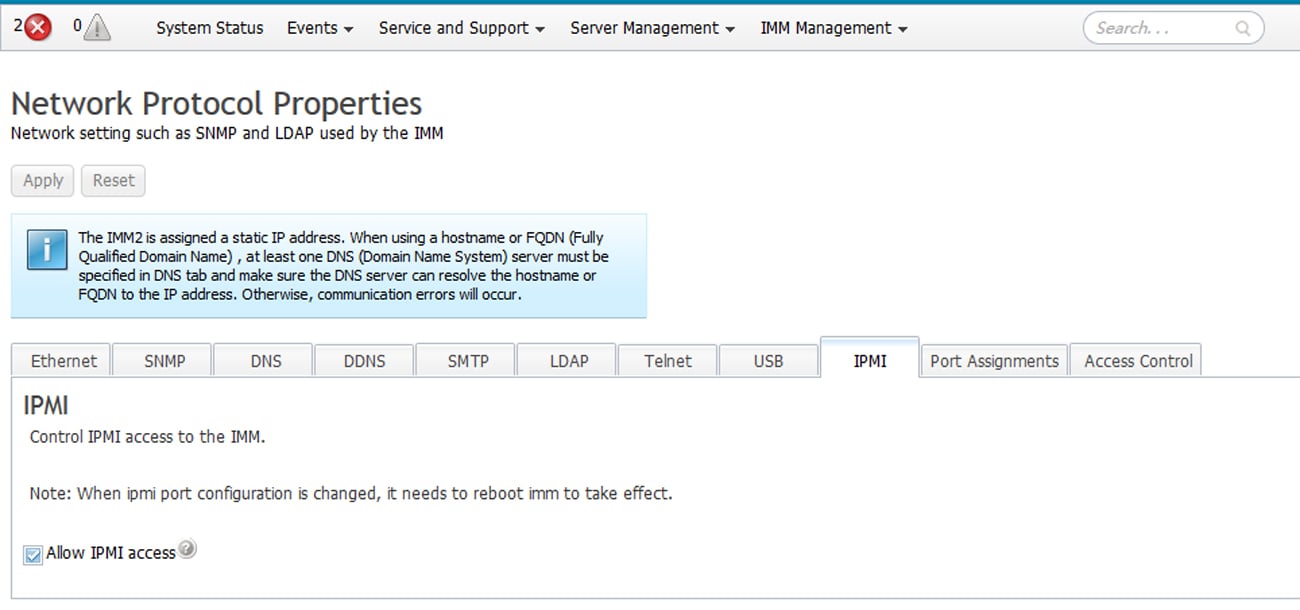 Het wijzigen van de IPMI-poortconfiguratie **vereist een IMM-herstart** om effect te hebben, de
IMM toont deze herinnering op het IPMI-tabblad.
IBM's documentatie merkt op: *"If no IPMI User IDs have been configured by the CMM, the
network port associated with the IPMI protocol will be closed."* Zorg dat er minstens één
IPMI-gebruikers-ID is geconfigureerd, anders blijft de LAN-poort gesloten.
Vanaf de host die ipmideck gaat draaien:
```bash theme={null}
ipmitool -I lanplus -H -U USERID -P chassis status
```
**Markering ter beoordeling:** het IMM2-web-UI-pad varieert per firmwareversie, en IBM's BMC-
documentatie is online schaars. De volledige referentie is de
[IMM2 Configuration User's Guide (PDF)](https://public.dhe.ibm.com/systems/support/system_x_pdf/imm2_configurations_usersguide.pdf).
Valideer elke stap tegen echte hardware voordat je op deze gids vertrouwt.
## Bron
[CITED: pubs.lenovo.com/imm2, Managing the IMM2 with IPMI](https://pubs.lenovo.com/imm2/dw1lm_t_managingtheimmwithipmi.html) ·
[IMM2 Configuration User's Guide (IBM)](https://public.dhe.ibm.com/systems/support/system_x_pdf/imm2_configurations_usersguide.pdf)
Het wijzigen van de IPMI-poortconfiguratie **vereist een IMM-herstart** om effect te hebben, de
IMM toont deze herinnering op het IPMI-tabblad.
IBM's documentatie merkt op: *"If no IPMI User IDs have been configured by the CMM, the
network port associated with the IPMI protocol will be closed."* Zorg dat er minstens één
IPMI-gebruikers-ID is geconfigureerd, anders blijft de LAN-poort gesloten.
Vanaf de host die ipmideck gaat draaien:
```bash theme={null}
ipmitool -I lanplus -H -U USERID -P chassis status
```
**Markering ter beoordeling:** het IMM2-web-UI-pad varieert per firmwareversie, en IBM's BMC-
documentatie is online schaars. De volledige referentie is de
[IMM2 Configuration User's Guide (PDF)](https://public.dhe.ibm.com/systems/support/system_x_pdf/imm2_configurations_usersguide.pdf).
Valideer elke stap tegen echte hardware voordat je op deze gids vertrouwt.
## Bron
[CITED: pubs.lenovo.com/imm2, Managing the IMM2 with IPMI](https://pubs.lenovo.com/imm2/dw1lm_t_managingtheimmwithipmi.html) ·
[IMM2 Configuration User's Guide (IBM)](https://public.dhe.ibm.com/systems/support/system_x_pdf/imm2_configurations_usersguide.pdf)