> ## Documentation Index
> Fetch the complete documentation index at: https://docs.ipmideck.com/llms.txt
> Use this file to discover all available pages before exploring further.
# Lenovo XCC
> Schakel IPMI-over-LAN in op de Lenovo XClarity Controller (XCC / XCC2) zodat ipmideck verbinding kan maken met je ThinkSystem-server.
**Van toepassing op:** Lenovo ThinkSystem-servers met XClarity Controller (XCC) en XCC2.
Lenovo XCC is een **Experimentele** leverancier voor ipmideck, deze stappen komen uit officiële Lenovo-
documentatie en een echte XCC (ThinkSystem SR630 V2). IPMI-over-LAN is **standaard
uitgeschakeld** op XCC voor beveiliging, en Lenovo raadt aan het weer uit te schakelen wanneer het niet in
gebruik is.
## Stappen
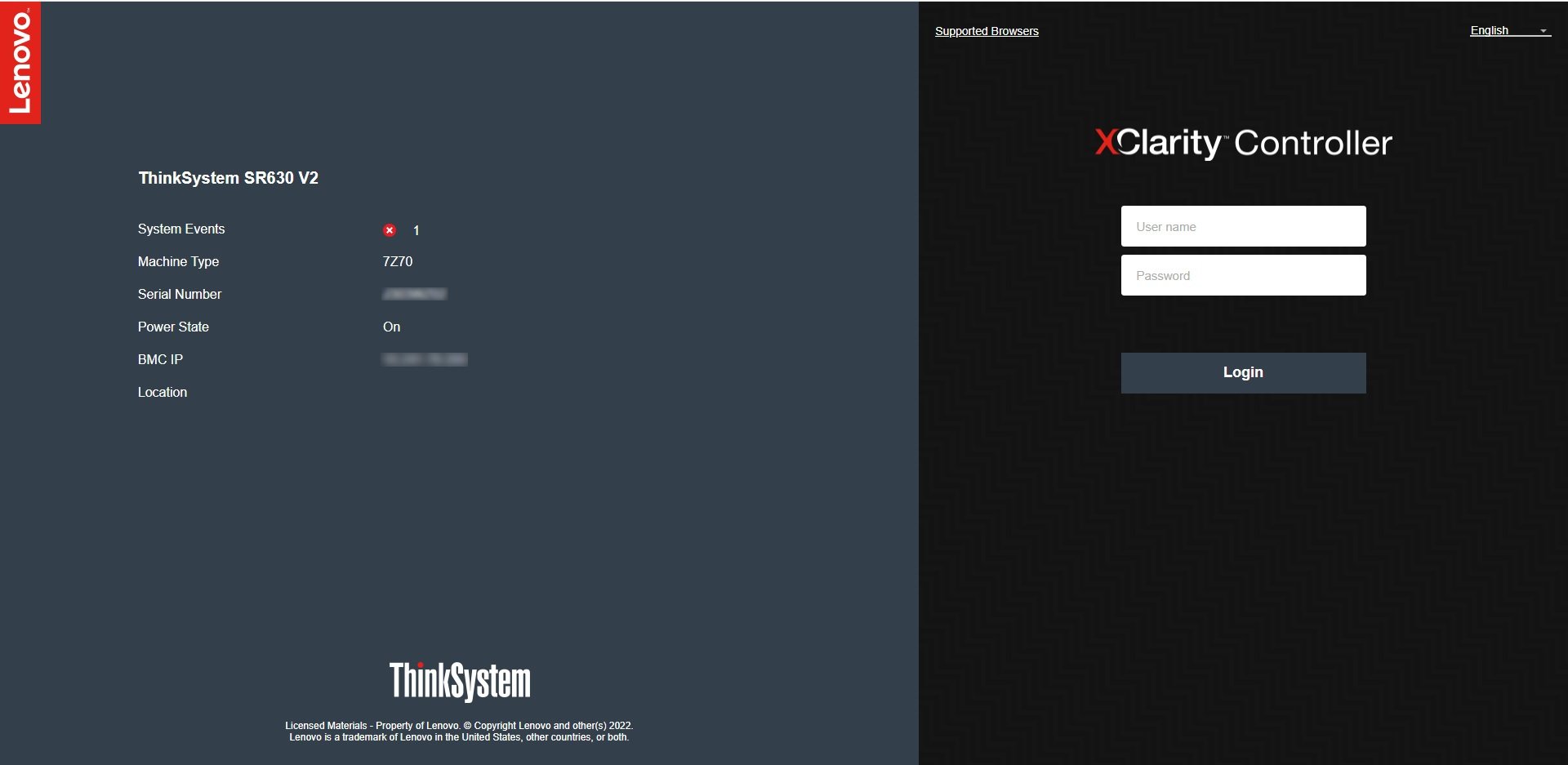
Navigeer in een browser naar het XCC-IP-adres en log in. De standaard inloggegevens zijn
**USERID** / **PASSW0RD** (let op de **nul** in "PASSW0RD"). Wijzig ze onmiddellijk
als ze nog in gebruik zijn.
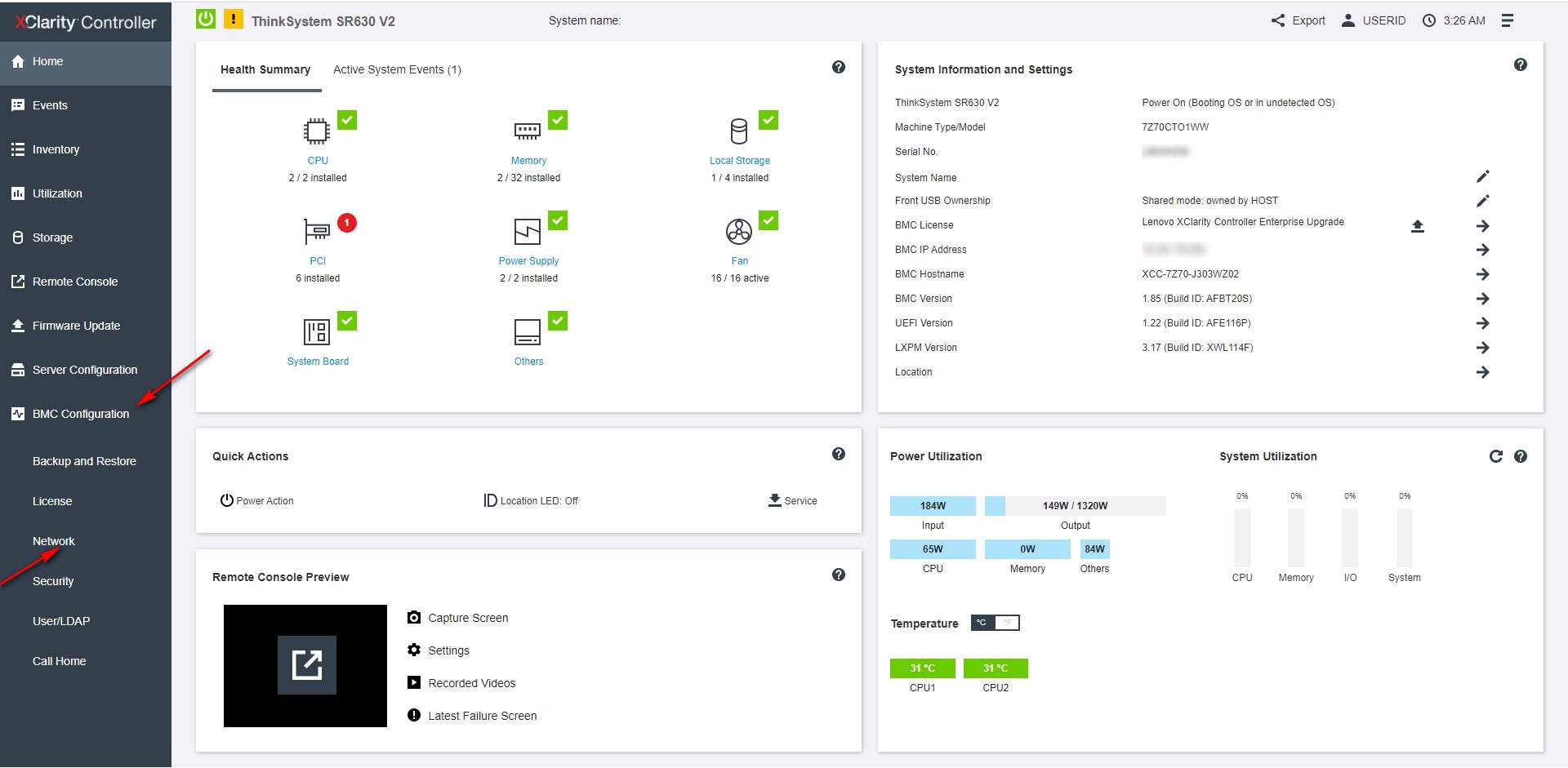
 Open vanuit het XCC-dashboard **BMC Configuration → Network** in de linkernavigatie.
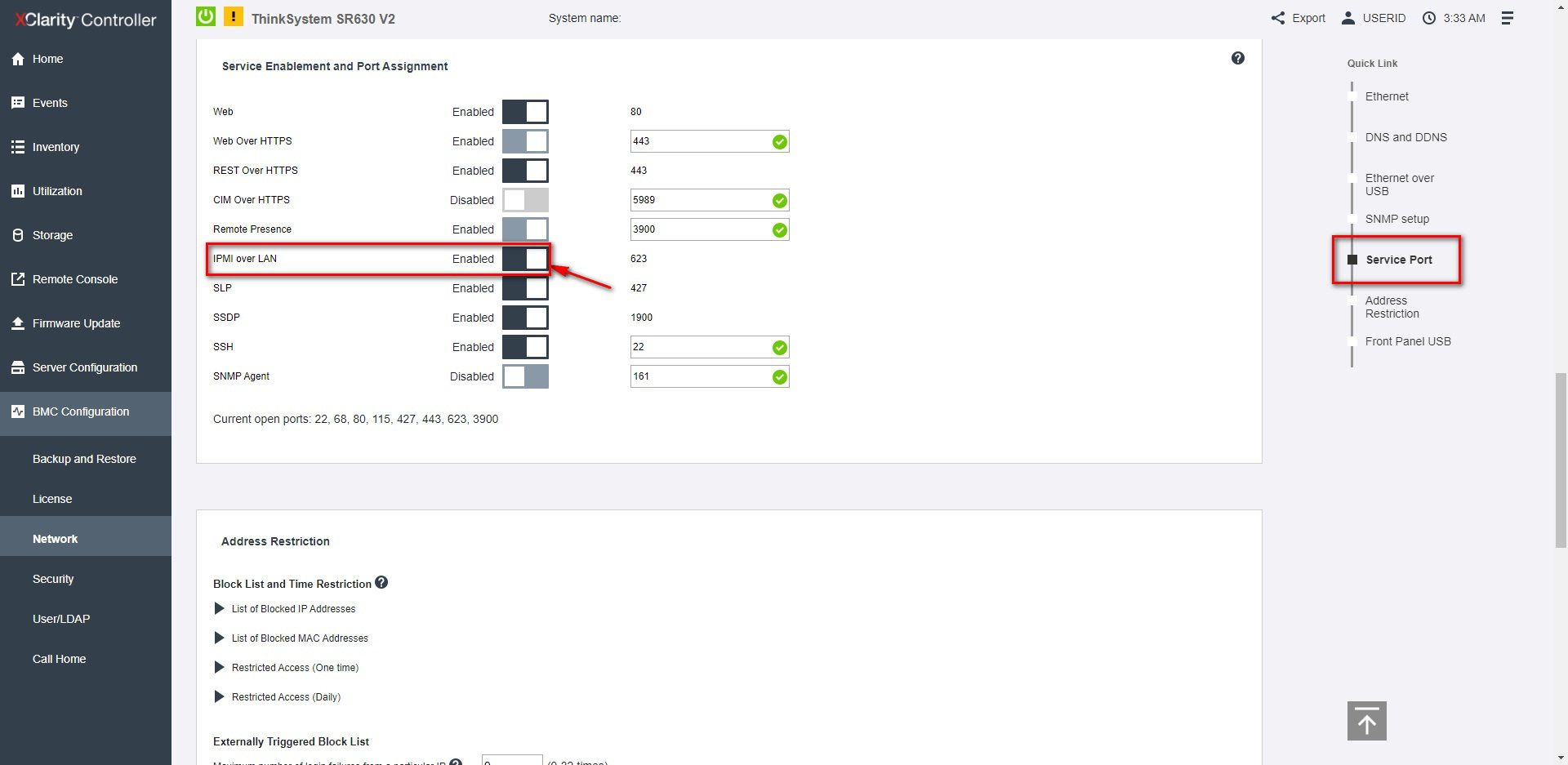
 Stel onder **Service Enablement and Port Assignment** de optie **IPMI over LAN** in op **Enabled**
(het gebruikt poort **623**).
Stel onder **Service Enablement and Port Assignment** de optie **IPMI over LAN** in op **Enabled**
(het gebruikt poort **623**).
 Vanaf de host die ipmideck gaat draaien:
```bash theme={null}
ipmitool -I lanplus -H -U USERID -P chassis status
```
**Markering ter beoordeling:** XCC2 (de nieuwere generatie) gebruikt hetzelfde pad maar met een herontworpen
webinterface. Verifieer de navigatie tegen je daadwerkelijke hardware.
## Bron
[CITED: pubs.lenovo.com/xcc, Enabling or Disabling IPMI Network Access (XCC)](https://pubs.lenovo.com/xcc/NN1ia_c_configuringIPMI) ·
[Lenovo Support HT514330, IPMI over LAN (XCC)](https://support.lenovo.com/us/en/solutions/ht514330-ipmi-over-lan-xcc)
Vanaf de host die ipmideck gaat draaien:
```bash theme={null}
ipmitool -I lanplus -H -U USERID -P chassis status
```
**Markering ter beoordeling:** XCC2 (de nieuwere generatie) gebruikt hetzelfde pad maar met een herontworpen
webinterface. Verifieer de navigatie tegen je daadwerkelijke hardware.
## Bron
[CITED: pubs.lenovo.com/xcc, Enabling or Disabling IPMI Network Access (XCC)](https://pubs.lenovo.com/xcc/NN1ia_c_configuringIPMI) ·
[Lenovo Support HT514330, IPMI over LAN (XCC)](https://support.lenovo.com/us/en/solutions/ht514330-ipmi-over-lan-xcc)