> ## Documentation Index
> Fetch the complete documentation index at: https://docs.ipmideck.com/llms.txt
> Use this file to discover all available pages before exploring further.

# Supermicro

> 通过 Web 界面或 BIOS 在 Supermicro IPMI 2.0 BMC（X8–X12 主板）上配置 IPMI-over-LAN。低置信度，使用前请在你的硬件上验证。

<Warning>
  **低置信度指南，在依赖这些步骤之前请在你的硬件上验证。**
  Supermicro BMC 固件在主板代际之间（X8 到 X12）差异显著。
  下面的截图来自较旧的 Supermicro BMC 和 BIOS；请将导航
  路径视为起点，针对你自己的主板确认它们，并报告更正。
  所有者硬件验证尚待进行。
</Warning>

**适用于：** 带 IPMI 2.0 BMC 的 Supermicro 服务器（X8 / X9 / X10 / X11 / X12 主板）。

<Note>
  Supermicro 在 ipmideck 中为**实验性**，IPMI 2.0 可用但尚未彻底
  测试。在大多数 Supermicro 主板上，**IPMI-over-LAN 默认是启用的**；主要任务
  是给 BMC 一个可达的 LAN 地址，可以从 Web 界面或从 BIOS 进行。
</Note>

## 选项 A：从 BMC Web 界面

<Steps>
  <Step title="登录 BMC Web 界面">
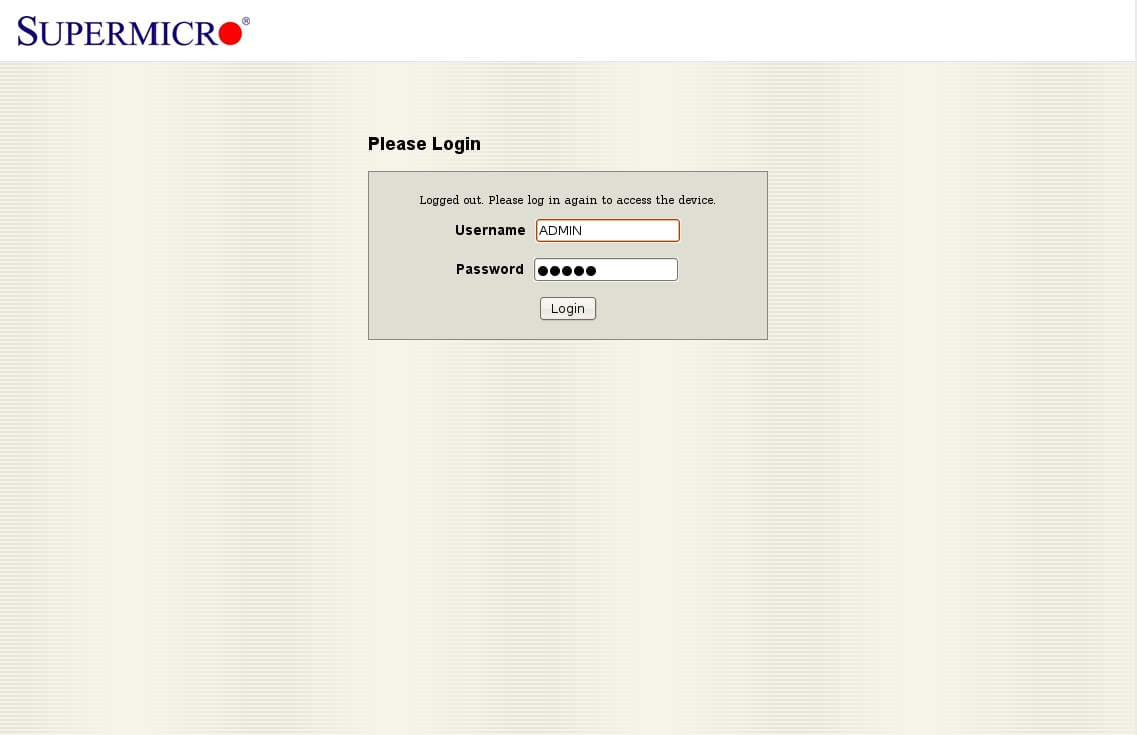
    在浏览器中，导航到 BMC IP 地址。默认凭据为
    **ADMIN** / **ADMIN**，首次访问后请立即更改它们。

    <Frame caption="The Supermicro BMC login screen (default ADMIN / ADMIN).">
      <img src="https://mintcdn.com/weremind/6NbPl-Qtygk7FojC/tutorials/supermicro/IPMI-login.png?fit=max&auto=format&n=6NbPl-Qtygk7FojC&q=85&s=364a7c86b3ac48d19925925f53025f8c" alt="Supermicro BMC web interface login screen" width="1137" height="735" data-path="tutorials/supermicro/IPMI-login.png" />
    </Frame>
  </Step>

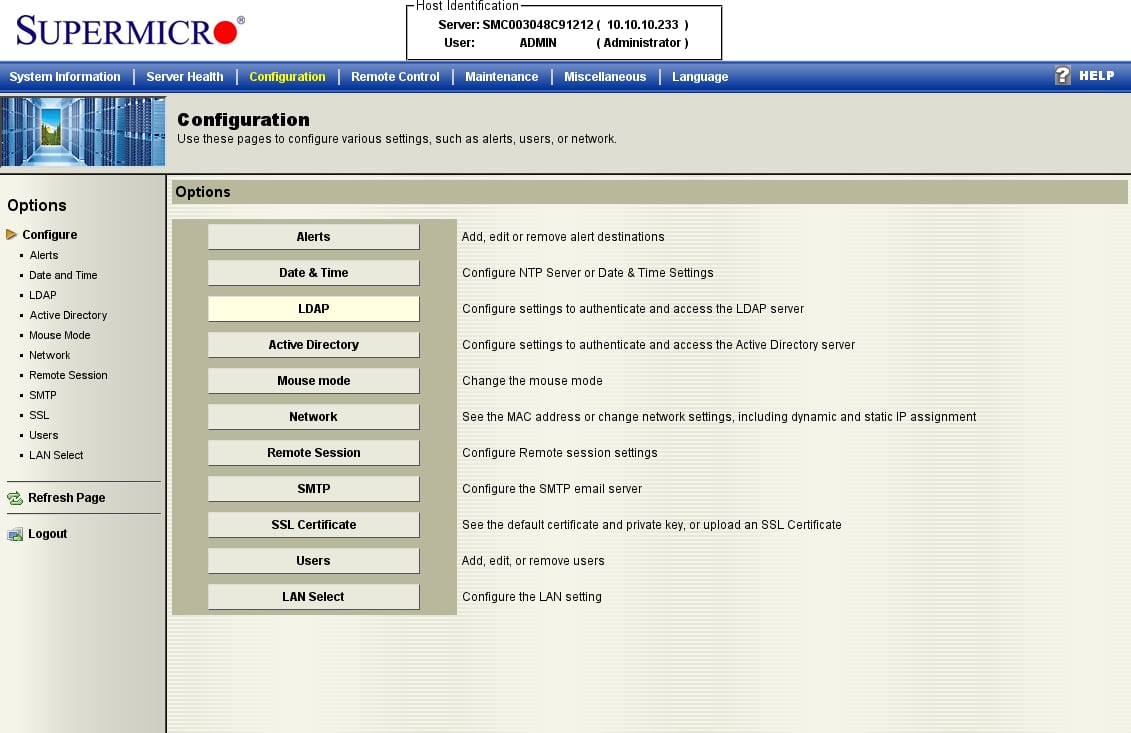
  <Step title="打开 Configuration → Network">
    打开 **Configuration** 选项卡，并从选项列表中选择 **Network**。（这个较旧的
    固件将所有内容分组在 *Configuration* 下；较新的主板可能将其标为
    *Network → Network Settings*。）

    <Frame caption="The Configuration menu: open Network to set the BMC's LAN address.">
      <img src="https://mintcdn.com/weremind/6NbPl-Qtygk7FojC/tutorials/supermicro/IPMI-web-configuration.png?fit=max&auto=format&n=6NbPl-Qtygk7FojC&q=85&s=0ddc0b792bcad606fdcddab879ccf443" alt="Supermicro Configuration options menu" width="1131" height="733" data-path="tutorials/supermicro/IPMI-web-configuration.png" />
    </Frame>
  </Step>

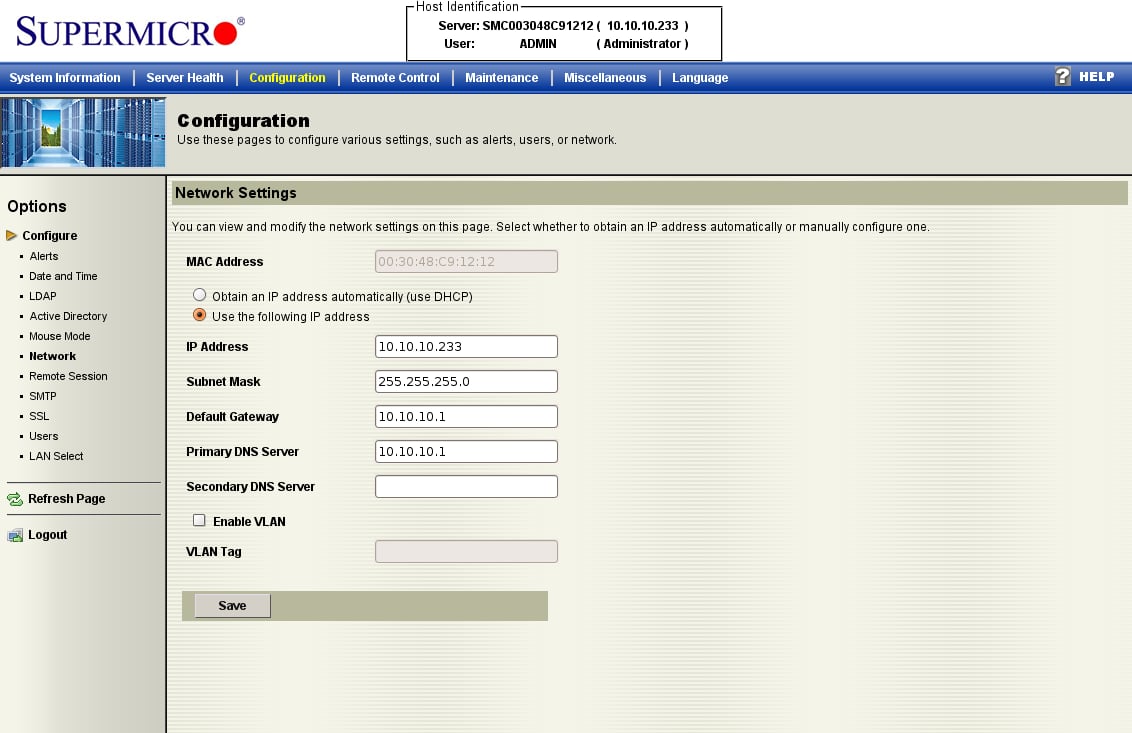
  <Step title="设置 BMC 的网络地址">
    选择 **Obtain an IP address automatically (DHCP)** 或 **Use the following IP address**
    并输入静态 IP、子网掩码和网关，然后点击 **Save**。IPMI-over-LAN
    已在默认通道上处于激活状态，这只是让 BMC 可达。

    <Frame caption="Network Settings: DHCP or a static IP, subnet mask, and gateway.">
      <img src="https://mintcdn.com/weremind/6NbPl-Qtygk7FojC/tutorials/supermicro/IPMI-network-configuration.png?fit=max&auto=format&n=6NbPl-Qtygk7FojC&q=85&s=0bf1179f0b2ea808161c9f522845dfef" alt="Supermicro Network Settings page with static IP configuration" width="1132" height="733" data-path="tutorials/supermicro/IPMI-network-configuration.png" />
    </Frame>
  </Step>
</Steps>

## 选项 B：从 BIOS

如果 BMC 还没有地址，请从 BIOS 设置它。在 POST 期间按 **DEL** 进入
BIOS Setup Utility。

<Steps>
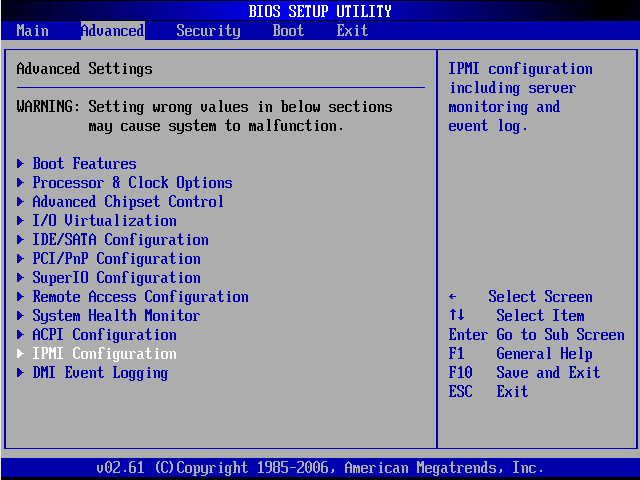
  <Step title="Advanced → IPMI Configuration">
    在 **Advanced** 选项卡上，打开 **IPMI Configuration**。

    <Frame caption="BIOS Advanced tab: select IPMI Configuration.">
      <img src="https://mintcdn.com/weremind/6NbPl-Qtygk7FojC/tutorials/supermicro/BIOS-advanced.png?fit=max&auto=format&n=6NbPl-Qtygk7FojC&q=85&s=ff15fc6b9b3b996a0b7c53044711a121" alt="Supermicro BIOS Advanced settings menu" width="640" height="480" data-path="tutorials/supermicro/BIOS-advanced.png" />
    </Frame>
  </Step>

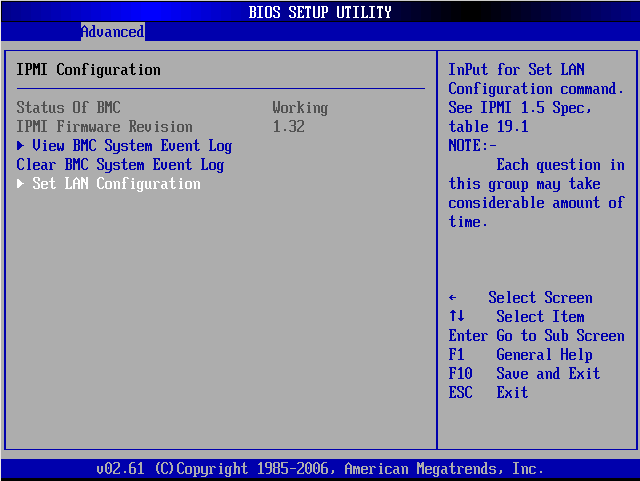
  <Step title="设置 LAN Configuration">
    确认 **Status Of BMC: Working**，然后打开 **Set LAN Configuration**。

    <Frame caption="IPMI Configuration: BMC status and Set LAN Configuration.">
      <img src="https://mintcdn.com/weremind/6NbPl-Qtygk7FojC/tutorials/supermicro/IPMI-configuration.png?fit=max&auto=format&n=6NbPl-Qtygk7FojC&q=85&s=d194ccaf97c42dee25e4732d49ecf4a0" alt="Supermicro BIOS IPMI Configuration screen" width="640" height="481" data-path="tutorials/supermicro/IPMI-configuration.png" />
    </Frame>
  </Step>

  <Step title="打开 LAN 通道">
    在 **LAN Configuration**（Channel 01）下，你可以设置 **IP Address**、**Subnet Mask**
    和 **Gateway Address**。
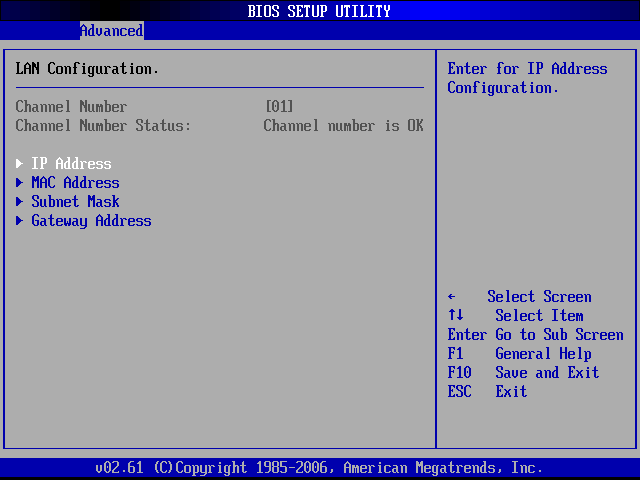
    <Frame caption="LAN Configuration: IP Address, Subnet Mask, and Gateway Address sub-menus.">
      <img src="https://mintcdn.com/weremind/6NbPl-Qtygk7FojC/tutorials/supermicro/LAN-configuration.png?fit=max&auto=format&n=6NbPl-Qtygk7FojC&q=85&s=306e03ad3cc288c24510ec41dc1052e0" alt="Supermicro BIOS LAN Configuration menu" width="640" height="480" data-path="tutorials/supermicro/LAN-configuration.png" />
    </Frame>
  </Step>

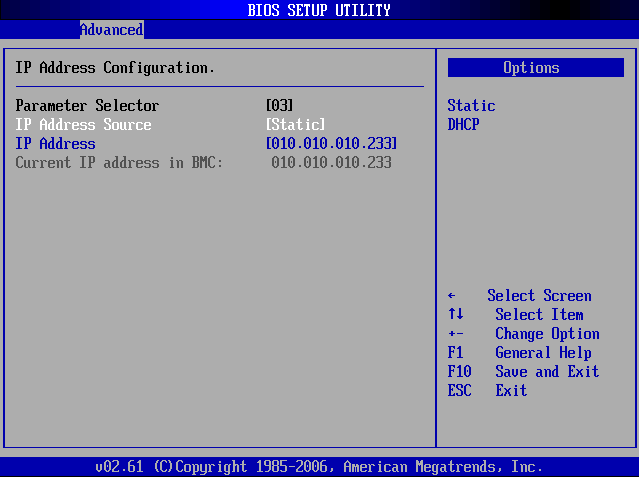
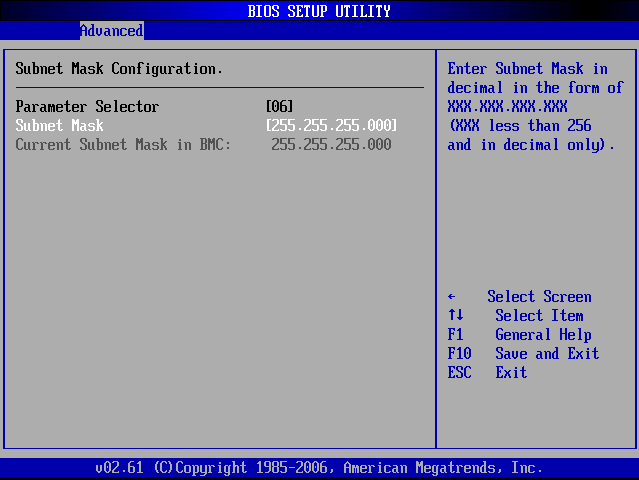
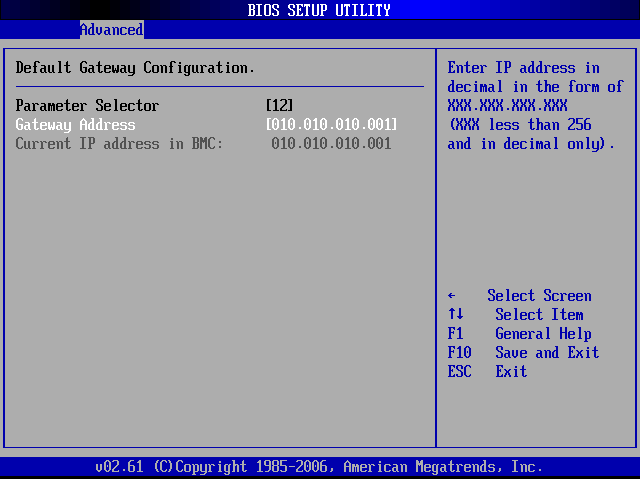
  <Step title="设置静态 IP、子网和网关">
    将 **IP Address Source** 设为 **Static**，然后输入 IP、子网掩码和网关。
    按 **F10** 保存并退出。

    <Frame caption="IP Address Configuration: set the source to Static and enter the address.">
      <img src="https://mintcdn.com/weremind/6NbPl-Qtygk7FojC/tutorials/supermicro/IP-configuration.png?fit=max&auto=format&n=6NbPl-Qtygk7FojC&q=85&s=dc47128bfc333ad8934d143760f9b8ff" alt="Supermicro BIOS IP Address configuration" width="639" height="477" data-path="tutorials/supermicro/IP-configuration.png" />
    </Frame>

    <Frame caption="Subnet Mask configuration.">
      <img src="https://mintcdn.com/weremind/6NbPl-Qtygk7FojC/tutorials/supermicro/Subnetmask-configuration.png?fit=max&auto=format&n=6NbPl-Qtygk7FojC&q=85&s=47783d35de87433baa303d7f52fbb6db" alt="Supermicro BIOS Subnet Mask configuration" width="639" height="480" data-path="tutorials/supermicro/Subnetmask-configuration.png" />
    </Frame>

    <Frame caption="Default Gateway configuration.">
      <img src="https://mintcdn.com/weremind/6NbPl-Qtygk7FojC/tutorials/supermicro/Gateway-configuration.png?fit=max&auto=format&n=6NbPl-Qtygk7FojC&q=85&s=b55337743c289112d2ec008476d2b2f7" alt="Supermicro BIOS Default Gateway configuration" width="640" height="479" data-path="tutorials/supermicro/Gateway-configuration.png" />
    </Frame>
  </Step>
</Steps>

## 验证

从将运行 ipmideck 的主机：

```bash theme={null}
ipmitool -I lanplus -H <bmc-ip> -U ADMIN -P ADMIN chassis status
```

<Note>
  **标记以供审查：** Supermicro BMC 固件在 X8–X12 代际间差异很大，而且
  这些截图来自较旧的主板。较新的主板（X11 / X12）有重新设计的 Web
  UI。在依赖本指南之前，请针对你的特定主板进行测试。
</Note>

## 来源

[CITED: supermicro.com/manuals/other/IPMI\_Users\_Guide.pdf](https://www.supermicro.com/manuals/other/IPMI_Users_Guide.pdf) ·
[Thomas-Krenn Wiki, Supermicro IPMI Configuration](https://www.thomas-krenn.com/en/wiki/Supermicro_IPMI_Configuration_through_BIOS_or_Web_Interface)