Enable IPMI-over-LAN on Dell iDRAC (iDRAC6 / iDRAC7 / iDRAC8 / iDRAC9) so ipmideck can connect to your PowerEdge server.
Applies to: Dell iDRAC6, iDRAC7, iDRAC8, iDRAC9 (PowerEdge servers). The screenshots
below are from iDRAC6; iDRAC7 and iDRAC8 are nearly identical, and iDRAC9 reorganizes the
same settings under iDRAC Settings → Connectivity → Network (see the note at the end).
Dell iDRAC is Supported / tested with ipmideck. These steps are from official Dell
documentation and a real iDRAC6, confirm the navigation path matches your iDRAC firmware
before relying on it.
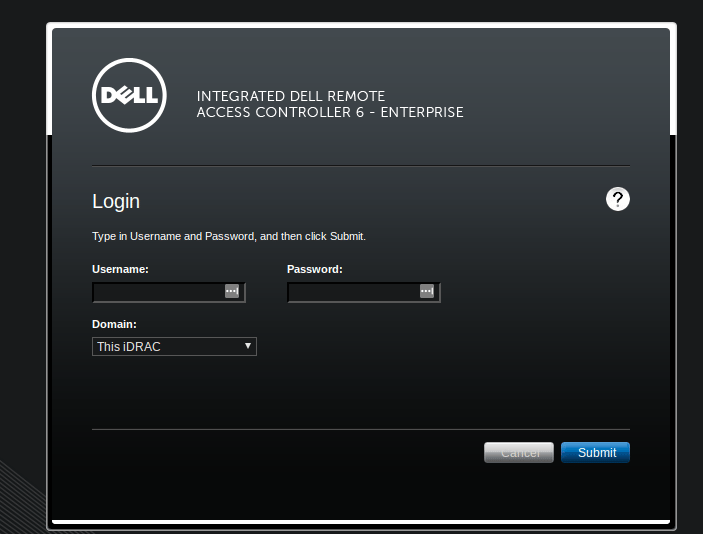
In a browser, navigate to the iDRAC IP address (factory default 192.168.0.120) and
log in. The default PowerEdge credentials are root / calvin, change these
immediately if they are still in use.
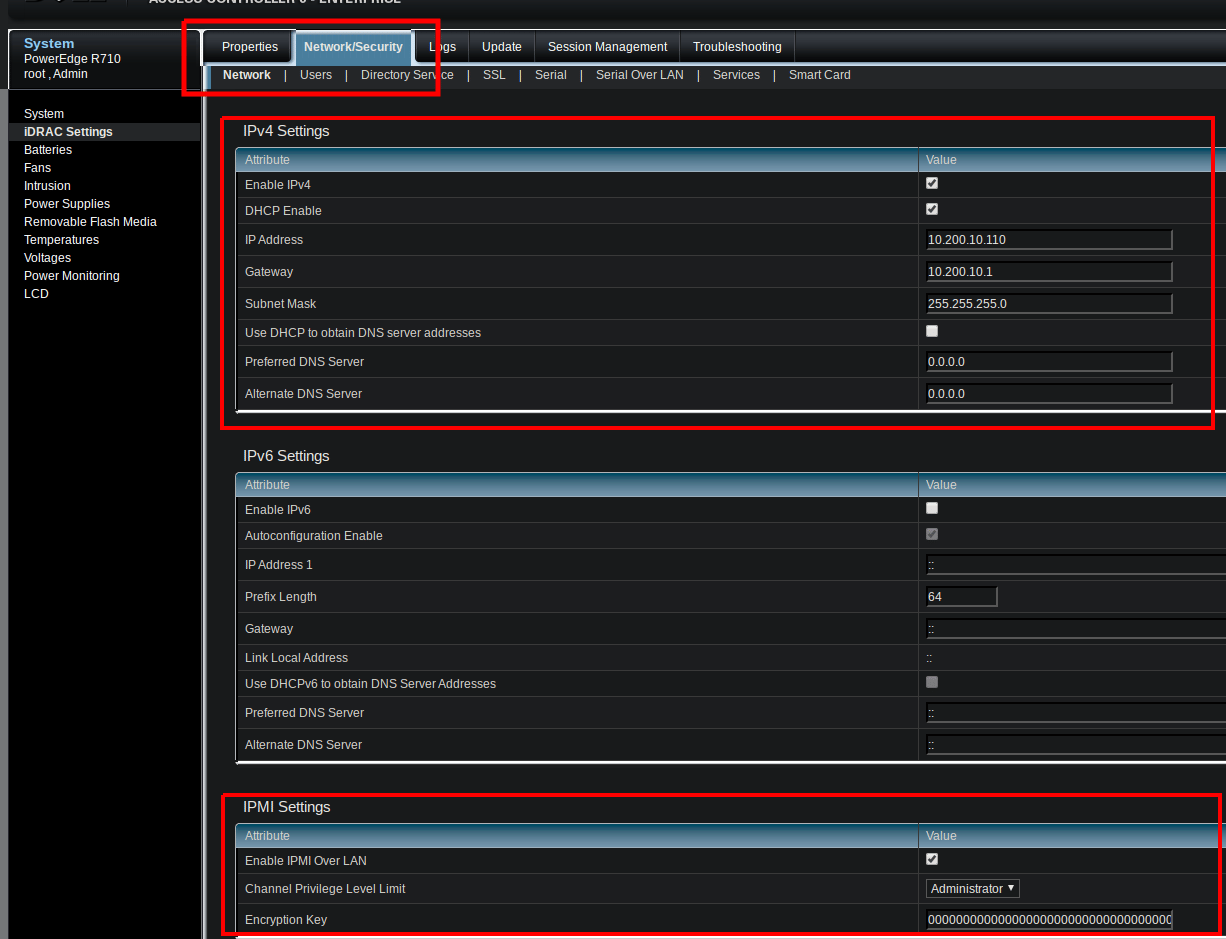
In the left pane choose iDRAC Settings, then open the Network/Security tab and
its Network sub-tab. This page holds the IPv4 settings and, further down, the
IPMI Settings.
On iDRAC9 the equivalent path is iDRAC Settings → Connectivity → Network.
3
Enable IPMI Over LAN
Scroll to the IPMI Settings section and tick Enable IPMI Over LAN. Set the
Channel Privilege Level Limit to Administrator (or at least Operator) so
ipmideck can read sensors and control power.
Network/Security → Network: the IPMI Settings panel with Enable IPMI Over LAN ticked and the channel privilege set to Administrator.
4
Set an encryption key (optional)
The Encryption Key can stay all-zeros (the default) for a standard lanplus
session. Set a 40-character hex key only if your security policy requires it.
5
Apply
Click Apply to save the change.
6
Verify IPMI is enabled
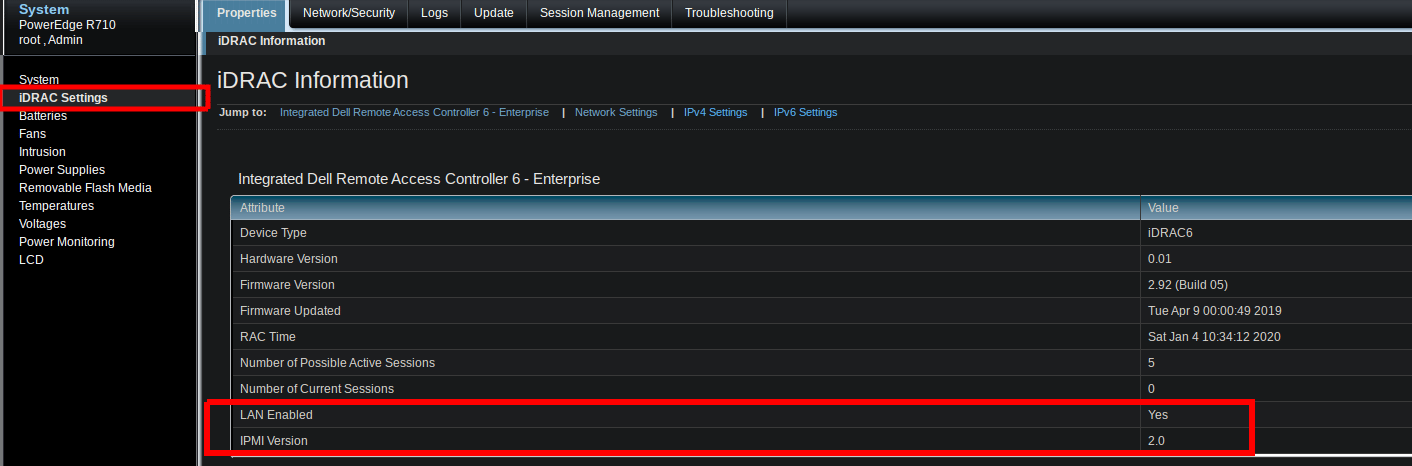
Back on Properties → iDRAC Settings → iDRAC Information, confirm LAN Enabled: Yes
and IPMI Version: 2.0.
iDRAC Information confirms LAN Enabled: Yes and IPMI Version: 2.0.
Then, from the host that will run ipmideck, confirm the LAN channel responds: