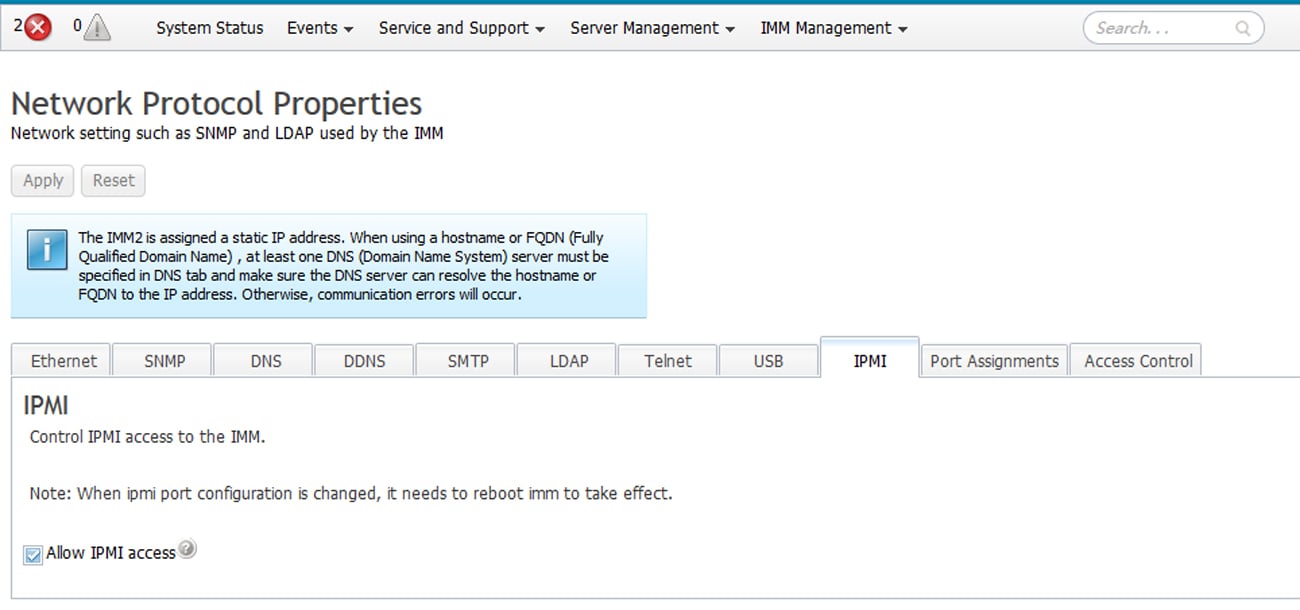
Enable IPMI-over-LAN on the IBM Integrated Management Module II (IMM2) for System x servers. Low-confidence, verify on your hardware before use.
Low-confidence guide, verify on your hardware before relying on these steps.
IBM IMM2 hardware is legacy (IBM sold the System x line to Lenovo in 2014) and online
documentation is sparse. The exact web-interface path depends on the IMM2 firmware
version. This is a high review priority, confirm every path against your own server
and report corrections. Owner hardware validation is pending.
Applies to: IBM System x servers with IMM2 (Integrated Management Module II), for
example the IBM x3650 M4 and x3550 M4.
In a browser, navigate to the IMM2 IP address and log in. The default credentials are
USERID / PASSW0RD (note the zero in “PASSW0RD”). Change them immediately
if they are still in use.
2
Open IMM Management → Network Protocol Properties
From the top menu, go to IMM Management → Network Protocol Properties, the page
with tabs for Ethernet, SNMP, DNS, …, IPMI.
3
Enable IPMI access
Open the IPMI tab and tick Allow IPMI access, then click Apply.
Changing the IPMI port configuration requires an IMM reboot to take effect, the
IMM shows this reminder on the IPMI tab.
4
Ensure an IPMI user ID exists
IBM’s documentation notes: “If no IPMI User IDs have been configured by the CMM, the
network port associated with the IPMI protocol will be closed.” Make sure at least one
IPMI user ID is configured, or the LAN port stays closed.
Flag for review: the IMM2 web-UI path varies by firmware version, and IBM’s BMC
documentation is sparse online. The full reference is the
IMM2 Configuration User’s Guide (PDF).
Validate every step against real hardware before relying on this guide.